Here’s a list of most typical startup errors encountered when attempting to run the SuperPro Designer application and how to circumvent them:
-
System or User Database Inaccessible
By far the most common error encountered when attempting to start SuperPro Designer, especially the first time after installation, is running into the following message:

or

If you clicked on Help button, then you will be taken to a pertinent help topic in the On-Line documentation explaining in detail the cause of the error and how to correct it (see Error 113.0016). Also, you may consult the topic Installation Issues, in this file. From the three possible causes for the error the most common is the first (database is not ODBC registered) or the second (File is inaccessible).
To identify the true source of the error and rectify it, you must check your ODBC registry. For that, you need to run the ODBC applet from the Control Panel / System & Security / Administrative Tools and see if the 'SPD System DB v15' AND 'SPD User DB v15' are listed under the System DSN tab (see below)

If you don't see an entry with the name "SPD System DB v15" and "SPD User DB v15" then something must have gone wrong during installation and the system prevented the installation application from creating this entry. To fix the issue, please click on the 'Add' button and from the ensuing "Create New Data Source" dialog:

Make sure you select the entry "Microsoft Access Driver (*.mdb, *.accdb) then click on "Finish".
Then the following screen appears:
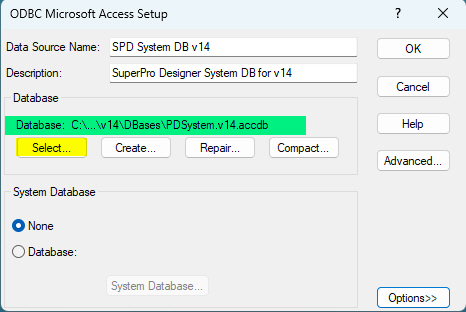
First type in the "Data Source Name" field: "SPD System DB v15'. Then click on "Select" button (yellow highlight above) and in the file selection dialog that ensues, locate and select the file "PDSystem.v15.accdb". Make sure this file is located in an area of your PC that is going to be accessible (with read-and-write privileges) by all the users of the application. The file should have been copied to the following folder (by default):
C:\Users\Documents\Public Documents\Intelligen\SuperPro Designer\v15\DBases
If the file is currently located in a folder that is not publicly accessible, then start your Windows Explorer (file manager) and place a copy of this file in such a publicly accessible area, the select it in the ODBC setup dialog. After exiting the ODBC applet, attempt to restart SuperPro Designer as usual.
Repeat the same procedure as above for the "SPD User DB v15" entry (if it's missing) and this time select the "PDUser.v15.accdb" file.
IMPORTANT NOTE-1: For users installing the application on a Win-64 platform, you must consult the ODBC interface that handles 32-bit applications (as SuperPro Designer is still a 32-bit application running in the 32-bit compatibility layer of these systems). This ODBC applet can be started by running the "SysWOW6432\odbcad32.exe" under your operating system's folder. The exact location of the applet may vary depending on your operating system. Please consult your specific installation's help system for details.
IMPORTANT NOTE-2: After clicking "Add" in the "Create New Data Source" dialog you cannot find the "Microsoft Access (*.mdb, *.accdb) entry, it means that you must have one of the latest 64-bit editions of MS-Office that do not install any more the 32-bit version of the ACEODBC.DLL required. The installation of SuperPro typically also installs this driver, but if something went wrong (e.g. you didn't have proper Administrative Privileges) this driver may have not been installed. Please visit the Microsoft Download Site ( https://www.microsoft.com/en-us/download/details.aspx?id=13255 ) for more details and to download the "AccessDatabaseEngine.exe" from there. Do NOT download the file with the "_X64" suffix even if your Windows is 64-bit.
The "AccessDatabaseEngine.exe" is also supplied with your SuperPro Designer software (top level on the CD). Before running it, it is suggested that you right-click and chose "Run As Administrator" to make sure that it will be allowed to make changes to your Windows environment. If you don't have the CD, you can also download the installation file from our ftp site:
www.intelligen.com/static/AccessDatabaseEngine.exe
It is recommended that your right-click on the .exe and select "Run As Administrator" to ensure the installation proceeds properly.
-
After a Previous Application Crash, Application Won't Start Or Menus / Toolbars Are Missing
The application may fail on startup because of an error from a previous run of the program. The reason for this problem is the following: during SuperPro Designer’s startup process, the application reads from the registry several information regarding its last state when it was running (e.g. which tool bars where active, where they were located, your user name, etc.). If SuperPro Designer was abruptly ended last time it (e.g. due to power or system failure) as it was recording into the registry all that information, it is possible that the records are now damaged and therefore unreadable causing SuperPro Designer to fail. To circumvent this problem, we must clean up the area of the registry that contains all of SuperPro Designer ‘s profile information (so that next time SuperPro Designer starts it will not find any information there and use some appropriate defaults). Here’s how to do that:
-
Temporary Directory Inaccessible
After the installation starts you receive an error message related to the "TEMP" directory assigned to the application (e.g. it doesn't exist, or is not accessible). By default the assumed temporary directory (where the application needs to be able to create and delete several files during its normal operation) is a "Temp" folder under publicly available are for all programs ("ProgramData" folder, normally a Hidden folder). If for some reason, the location of the temporary directory is not at a publicly accessible location then create a folder in a public area and in the ensuing dialog, designate that folder as the area to be used for the creation of temporary files during SuperPro Designer' s normal operation.
-
Sentinel (Protection) Key Related Errors
Another common error message appears when the application cannot communicate with the sentinel key (this only applies for users with a version of the software that requires a protection hardware device – dongle - )

The most common reason why this message comes up is that you either forgot to plug in your hardware protection key or it’s not properly plugged in. If you clicked on the Help button, an appropriate help screen from the On-Line help system will appear to assist you in troubleshooting the problem (see Error 109-00010 ). If for some reason the sentinel drivers (software necessary for communication between your application and the sentinel key) are missing or un-installed, you may have to re-install them (for more information on this see Sentinel Issues).
-
Unable to View Contents of On-Line Help
Occasionally, users may have difficulties viewing the contents of the online help facility. The online help documentation provided with the application (but not available in the evaluation edition unless downloaded separately) is in .chm format. This format requires your Internet Browser (typically Microsoft's "Internet Explorer" application) to show the contents. The format of the content is hypertext-based (similar to this file's format). Clicking on a topic listed in the "Table of Contents" or clicking on any jump-enabled area is similar to clicking on internet-content that triggers a jump to a different URL destination. Starting with a security update (896358) issued by Microsoft in October 2007, Windows prevents such jumps from files that are located on a network drive. Instead, it will present a message notifying the user that the content was blocked. There are ways to circumvent this security feature by modifying the user's registry to allow viewing of such content on network drives in general, or only from specific locations. For more details on this security update and how to enable viewing of hypertext content from network drivers please consult: http://support.microsoft.com/kb/902225.
Another possible way to circumvent the issue, is to re-register the control used to show such files. The following command when executed in a command prompt (CMD) interface has been shown to help (in some cases): regsrv32 c:\windows\system32\hhctrl.ocx
-
Application Configuration Error
In some rare circumstances, when you attempt to run the application you will get an error message that "This application has failed to start because the application configuration is incorrect. Reinstalling the application may fix this problem". If you have received this message, then a specific foundation package that needs to be installed properly (prior to our application's running) has not been able to successfully complete. This package, provided by Microsoft and often comes pre-installed to user's PC (as part of regular Windows Updates) it is normally executed with the installation script but if it fails to run (because of specific administration privilege restrictions or other conflicts on your particular Windows environment) then attempting to start the application will fail. If that is the case, please download the required package from: Latest Supported Visual C++ Redistributable Downloads | Microsoft Learn (please select "Latest Supported Redistributable Version" on the main page, then on the entry for X86 (...\\vcredist_x86.exe) from the 3 available choices). You will need to have full Administrative Privileges to install this package. If you don't, please have your System Administrator execute the installation.
-
Menu and/or Toolbars Disappear Upon Startup
In some rare circumstances, when you attempt to start the application you may notice that the menu has disappeared or even one or more toolbars disappeared. If that is the case, the registry area where the application keeps and reads information upon started may have been corrupted. You will need to wipe it out and the restart the application. To wipe-out the registry area of the application you will need to run the Registry Editor and that requires Administrative Privileges. You can run the editor from the command line by executing "RegEdit". If you are unsure how to use the Registry Editor or you are not allowed to run it, please contact your System Administrator. It is always a good idea to keep a backup of your registry settings before any changes are made to the registry.
Once you (or your IT contact) can run the registry editor, you will need to locate the following key:
"HKEY_CURRENT_USER\Software\Intelligen\SuperPro Designer"
Select it and hit the "Del" key (and confirm that you want to indeed delete this key). Close the registry and restart the application.
-
Permission Denied Error Message
In some Windows installations, it is possible that after the installation completes successfully, when trying to run the application a message like the following appears:
"Windows cannot access the specified device, path or file. You may not have appropriate permission to access the item" when clearly you have installed the application in your application's area.
Typically such messages come from "aggressive" antivirus programs who will not give permission to SuperPro Designer's executable to run. Please contact your user manual or the system's IT to fix the issue.

