What's New in SuperPro Designer Version 7.0
-
General
-
New Unit Procedures
-
New Operations
-
Improvements in Operations
-
Bug Fixes
a. General
a1. Consistent Vapor-Liquid/Solids Modeling
a2. Separate Specifications for Density Calculation of Liquid/Solid Phase and Vapor Phasery
a3. Stream Contents: Vapor, Liquid/Solid & Combined View
a4. Venting/Emissions Tab: New Options Allow for Consistent Pressure Policy in Vessels
a5. Ambient Conditions Are User-Specified
a6. Currency Specification Applies to All Monetary-Related Values (as Set by the User and/or Calculated by the Program)
a7. Set Default Currency for All Cost-Related Data in User Databank
a8. New Zoom Toolbar Available To All Time Charts (Operation/Equipment Gantt, Equipment Occupancy, Resource Consumption, etc.)
a9. Enhanced Properties of Heat Transfer Agents: Associate a Material, Flexible Cost Reference Options and Revamped Properties Interface
a10. Update Any Resource Records in the User Database (Heat Transfer Agent, Labor Type, etc.) Using Their Values As They Appear in a Design Case
a11. Stock Mixtures Can Update Their Properties in a Design Case File From a Databank Record
a12. Easier Deposit of Stock Mixtures to User Databank
a13. Stock Mixtures May (Optionally) Calculate Their Densities From Their Ingredients and Their Composition
a14. A New Stream Classification ("Cleaning Agent") Is Available as an Option for Input Streams
a15. Tracking of Material Resources: Refined Charts Tracking Use Based on Origin or Type of Consumption
a16. Cumulative Consumption of Material Resource Resets Every Set Window of Time or Every Set Amount
a17. Tool Tip Information Displayed for Icon Ports That Are of Special Purpose
a18. A New Bitmap Now May be Displayed at the Bottom Left of the Main UP Icon Indicating Staggered Employment of Equipment Resources
a19. Simplified Interface for Setting the Icon and Stream's Style
a20. More Advanced Features Available to Flowsheets With Multiple Recycle Loops
a21. Optionally Enforce a Policy to Empty Procedure Contents Before Equipment Is Reused by Another Procedure
a22. Expanded Back-Propagation Routes
a23. Staggered Equipment Units Are Now Included in the Equipment Report
a24. User Can Select Which Procedures to Exclude from Gantt Chart and Can Overwrite ProDesigner's Order of Appearance in the Chart
a25. User Can Select Which Equipment Resource to Exclude from Gantt Chart / Occupancy Chart and Can Overwrite ProDesigner's Order of Appearance in the Charts
a26.
The Color Map Used in Multi-Batch Equipment Occupancy Charts is Now Saved as Part of the Design Case File
a27. The CIP Skid / SIP Panel Presentation is Now in a Tree-Like View
a28. Viewing All Procedures or Equipment Interface: List Can Now Be Ordered Alphabetically or By Start Time
a29. Trivial (Non-Equipment-Sizing) Procedures Sharing an Equipment Resource in Design Mode Is Now Allowed
a30. Copy-and-Paste of a Chart Now (Optionally) Includes Its Legend
a31. Custom View of Registered Components' Property Values in a Table
a32. Customize the Attributes (Rows) Viewed in the Equipment Contents Table
a33. Customize the Attributes (Columns) Viewed in the Procedure Activity Overview Table
a34. Procedure Activity Overview Table Now Shows All Streams Employed by Each Operation (if there are more than one)
a35. Stream Summary Table Now Shows Each Stream's Classification Label
a36. Refined Excel-Link Interface for Selected Tables
a37. Relative File Paths Now Are Supported for References to External Files
a38. Expanded COM Server's Programmer Interface
a39. User DB Can Retain Components & Mixtures With Same Name as the System DB
a40. New Examples Added
a41. Fine-Tune Consumable Consumption
a42. Equipment Consumables With Volume Have Initial Contents Consistent With Volume Equipment
a43. Charts Now "Remember" Their Last Size And Position
a44. Should Depreciation Be Included in the Net Profit?
a45. No Rounding Applied to Components of Itemized Cost (Raw Materials, Labor, etc.); Capital Cost Estimates Are Rounded
a1. Consistent Vapor - Liquid/Solids Modeling
Starting with version 7.0 SuperPro Designer adopts a more consistent and uniform modeling approach to identifying the state of a component in a stream or in a state (equipment contents) inside a procedure. It should be noted that SuperPro still does not execute a formal flash to calculate V/L fractions for each component. This option may become available in an upcoming version. Therefore, components are still treated as being either fully in the vapor phase or fully in the liquid/solid phase. The default criterion remains the same as before: for each component, if the temperature exceeds its normal boiling point then that component is considered to be fully in the vapor phase (i.e. its V/L fraction is 1.0). Otherwise, the whole component is considered to be in the liquid phase (i.e., its V/L fraction is 0.0). In versions prior to v7, SuperPro Designer was not consistent in applying the above criterion throughout. Furthermore, starting with version 7.0 SuperPro also provides a few more alternatives to modeling the physical state of a component:
(a) "All Liquid/Solid"
(b) "All Vapor"
By selecting the Preferences / Thermodynamic Defaults menu option from the flowsheet's right-click (command) menu, the following dialog appears:
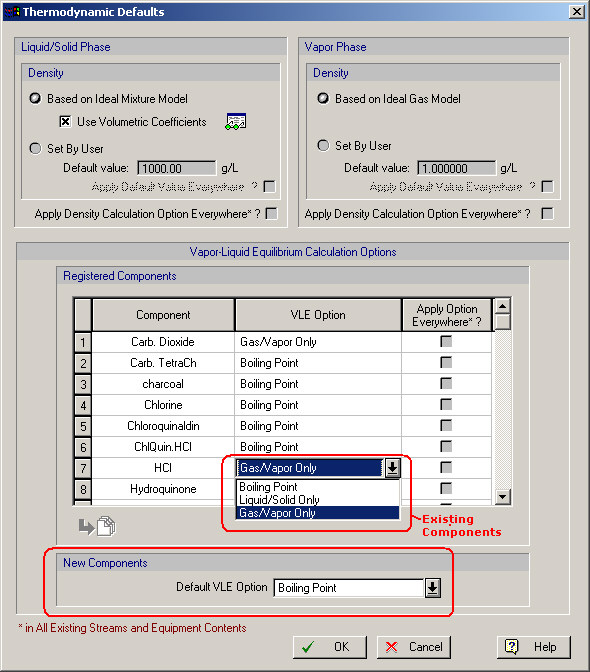
For cases where components are to be assumed as fully dissolved in liquids (and therefore should be considered as part of the liquid phase - regardless of temperature), choice (a) would be more appropriate. There may also be times, where a component is best left in the vapor phase all the time, and thereby not involved in any calculations in operations that perform VLE calculations as they may render the calculations unstable (e.g. Hydrogen, HCl, etc.). Finally, for situations where a user actually has a determined (measured or otherwise calculated) value for the V/L fraction of a component he/she can intervene and supply a value. Note that such values will only be used for that stream or state and will not be propagated further.
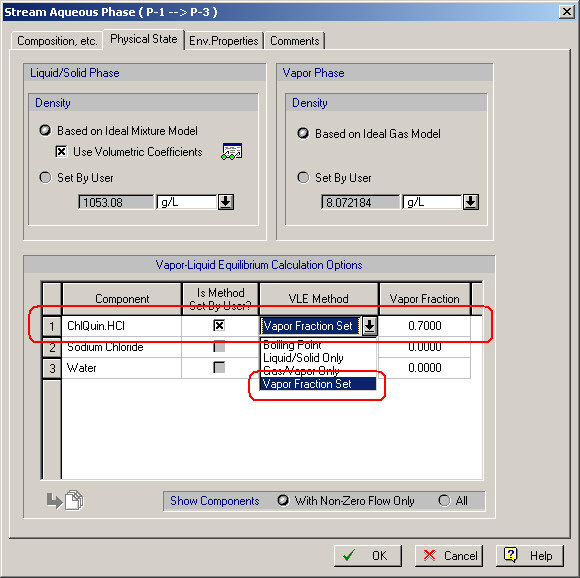
The above property page is from a stream dialog. However, a similar dialog that allows users to set or view the V/L modeling used in each state inside a unit procedure can be invoked by selecting the Procedure State Properties entry from the right-click (command) menu of a unit procedure.
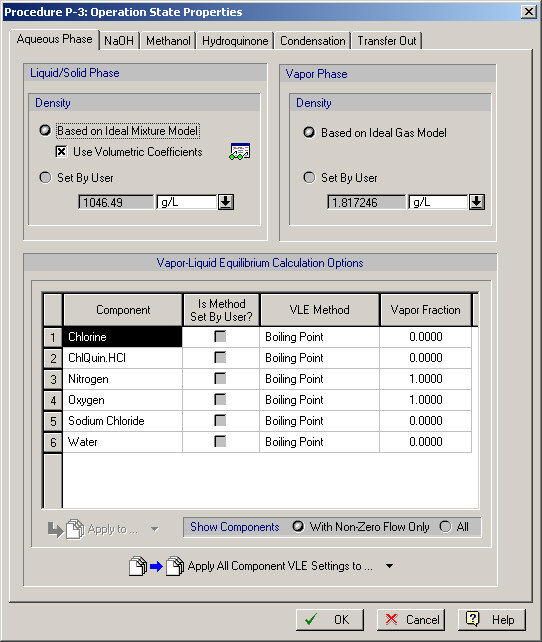
It should be noted that in order for a user to set his/her own preference in how to model the vapor or liquid/solid percentage of a component, the user must first check the "Is Method Set By User" button. This makes explicit the decision by the user to overwrite the system's default deduction about what the state of a component is. Note that the setting may not be always the same as what has been selected in the document's (default) setting if the operation prior to this state "knows better". In that case, the setting could be dictated by what the previous operation determined. For instance, the top stream leaving a flash drum will have all the component settings to "All Vapor" and the bottom stream will have all settings to "All Liquid" regardless of each component's default settings in the flowsheet.
a2. Separate Specifications for Density Calculations of Vapor and Liquid/Solid Phase
In cases where SuperPro's calculation of density is not appropriate, users can supply their own either absolute values or choice of model for how to compute the density of the liquid/solid phase in a stream (or state) and the vapor phase.
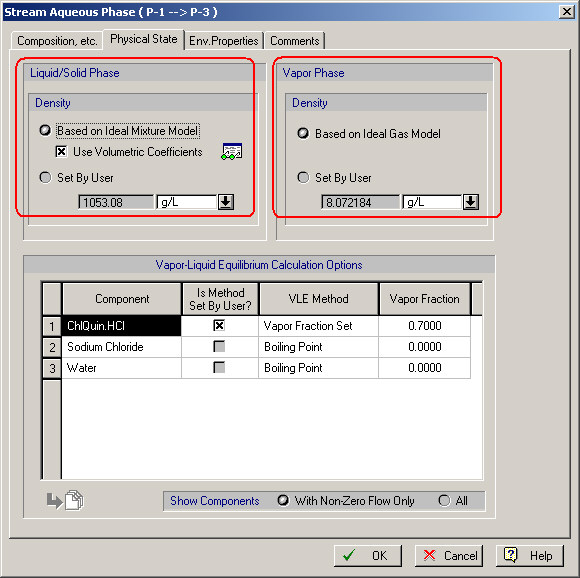
This specification, along with the vapor/liquid fractions will yield a better calculation for densities and therefore liquid volumes (in case of states that represent equipment contents).
a3. Stream Contents: Vapor, Liquid/Solid, Combined View.
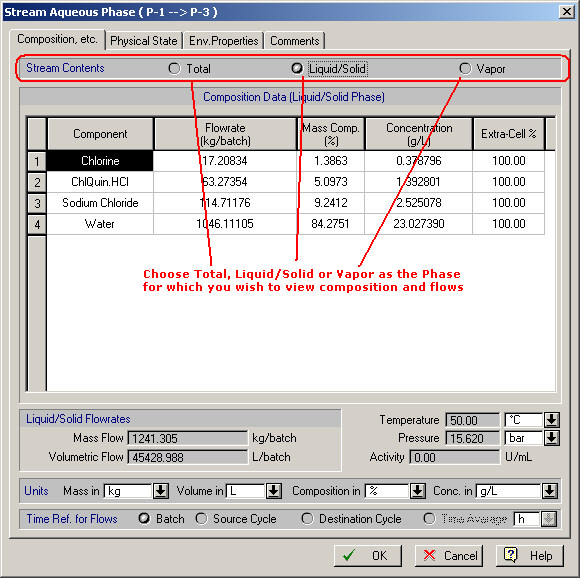
When viewing the contents of a stream (input, output or intermediate) users can now choose to view its contents in the vapor phase only, liquid/solid phase only or the combined (mixed) composition. For input streams, the following dialog is now displayed:
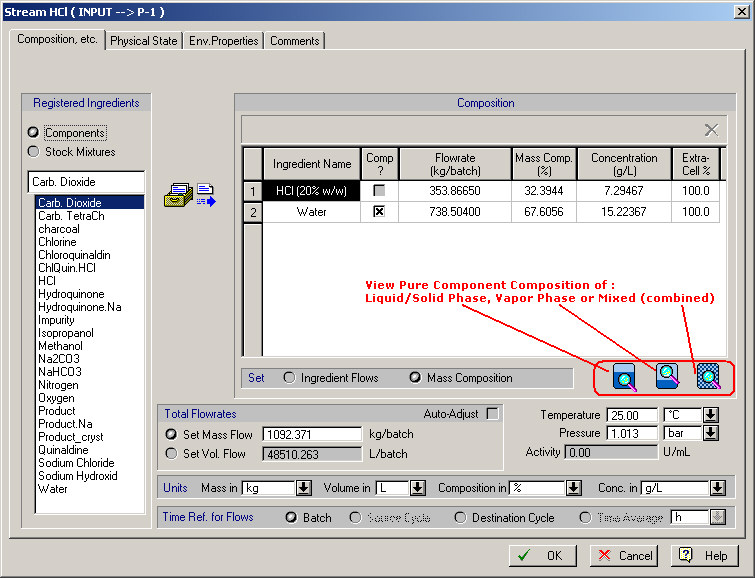
Notice the three extra buttons at the bottom right. Clicking on them will show (in a new window) the composition (in pure components only) of the vapor phase, liquid/solid phase or combined. These three buttons replace the single button that used to exist in previous versions (showing only the combined composition).
For intermediate/output streams, notice a new set of radio buttons at the top that allow users to chose which phase's data to view: vapor only, liquid/solid only or mixed.
a4. Venting / Emissions Tab: New Options Allow for Consistent Pressure Policy in Vessels.
Pressure calculations were loosely controlled in previous versions of ProDesigner. Operations used to be allowed to simply set a pressure value without any consequences. Starting with v7, pressure is a variable that can be set by only few vessel operations, which by nature, modify it (e.g. "Pressurize", "Vent" etc.) For most other vessel operations, the pressure is computed based on a "Venting" policy enforced by the user. The options are as follows:
(a) No Venting permitted: (the "Venting" box is NOT checked). Under this assumption any gaseous material (say after a heating operation), or reduced volume space (e.g. after a charge operation) will result in an increased pressure value.
(b) Allow venting to occur by operating in an "open" mode, thereby always maintaining atmospheric pressure. Note that this will allow any gaseous material that resulted from the operation to leave the vessel, in order to prevent the pressure from building up. Also, if the operation resulted in a vacuum (e.g. a "Transfer Out") then air would be allowed to be moved in the vessel in order to again maintain atmospheric pressure.
(c) Allow venting to occur but in a "closed" mode, with a relief valve setting at a user-defined value. This will allow gaseous materials to stay in the vessel, so long as the pressure does not build up more than the value specified in the pressure relief setting. If the pressure exceeds this value, then a certain amount of gaseous material will be vented, in order to maintain the pressure at the relief setting.

Note that under (b) and (c) above, the user may (optionally) request to have volatile VOC emission calculations also be performed. If that option is checked, then the program will calculate an additional amount of VOCs that leave the liquid phase and are taken out of the vessel along with the released gases. The models used to calculated the amount of VOCs released depend on the unit operation (for more details, check the on-line help under keyword "Emission Calculations").
As a final comment on the new Vent / Emissions tab, please note that venting/emissions from an operation may be directed to an output port of the user's choice (other than the default vent port of the equipment). This can be very convenient if either separate tracking of such emissions is needed, or separate (special) processing on the emissions from a certain operation is required.
a5. Ambient Conditions Are Now User-Specified.
To accommodate some of our users modeling plants in environment where the ambient conditions are much different than the common default of 1atm (for pressure) and 25º C (for temperature), we now allow you to specify the conditions (if you wish to do so). To enter the new values, you need to visit the dialog that appears after you select the command Thermodynamic Defaults from the flowsheet's command menu.

These conditions will be considered for instance when air is assumed to enter a vessel operating in an open venting mode.
a6. Currency Specification Applies to All Monetary-Related Values (as Set by the User and/or Calculated by the Program)
SuperPro employed the notion of different currencies in previous versions. However, a user's selection mainly applied to calculated cost values as seen in the various reports generated (Economic Evaluation Report or EER, Itemized Cost Report or ICR, etc.). Starting with this version of SuperPro Designer users can select a new currency (other than US$) to be associated with their project, and from that moment onward, all prices or cost-related items are going to be accepted in that currency and results (operating cost, capital cost, etc.) in charts as well as reports will be presented in the selected currency. Users can switch the default currency (for the design case) from the Preferences / Currency option of the flowsheet's command menu. The following dialog appears:

Once a new currency is selected, then all monetary properties are displaying values in the new currency. For instance, in the View / Executive Summary dialog, after selecting "Euro" as the new currency, the following appears:

Furthermore, when selecting the Ingredient Cost & Inventory Data menu option from the flowsheet's context menu, the following dialog appears:

Notice that in the above dialog users are allowed to directly input prices in the newly selected monetary unit (Euro in the case of the dialog above).
Finally, database-stored information that may related to monetary values (e.g. purchase costs of equipment, etc.) can also be saved in a user-selected monetary unit. The following dialog appears when selecting the Databank / Equipment in Sites and then editing the properties of an existing equipment. Note that saving cost values in their native currency, preserves their values (regardless of the exchange rate to US$). Furthermore, utilizing such values in a project that has been set to the same currency, no conversions are made, and therefore all results are independent of exchange rates to US$. However, when importing (or accessing) the value of a database saved property to a project that has a different monetary selection as its default, the values will be converted using the currently set exchange rate.

Also, it should be noted that since SuperPro Designer's default purchase cost models compute purchase cost of equipment in US$, the exchange rate to the selected currency will affect the economic results (as at some point, these costs will have to be converted to the selected currency using the exchange rate provided).
a7. Set Default Currency For All Cost-Related Data in User Databank.
Since not all of our users purchase from suppliers that deal with US$, we have now made it easier to store in your databank cost-related information (prices for equipment, raw materials, labor rates, etc.) in a currency other than US$. To indicate your choice of currency (used by default in every new entry in the user DB), visit the dialog that appears when you select the Databanks / Currency option (from main menu) and click on to check the "Default?" property.

When switching default currency you will be asked if you wish to change every pre-existing cost item in the databank from its previous currency to the new currency.
Please not that one (and only one) currency must be set as "default".
a8. New Zoom Toolbar Available to All Time Charts (Equipment Occupancy Chart, Gantt Chart, Resource Consumption Chart, etc.)
We have added a new toolbar in all interfaces that display a time chart (e.g. Operation/Equipment Gantt Chart, Equipment Occupancy Chart, Resource Utilization Chart, etc.) that allows users to customize the zooming factor applied when viewing the chart (see below)

With each mode selected, the time range (i.e. the range of dates/times necessary to display all the charts information in the x-axis) is mapped differently into pixels.
The two default modes that are most commonly used are:
(a) Normal (100%) and
(b) Fit-to-Window
When Normal mode is chosen, the time-to-pixels mapping factor is calculated as the smallest possible value that allows the chart to display all its minor and/or major settings without any overlapping. Note that in this mode, and depending on how extensive the time range is, some horizontal scrolling may be required to see the far end of the chart.
When "Fit-To-Window" mode is chosen, the time-to-pixels mapping factor is selected such that the entire range of the time chart will fit in the available window width. Note that in this mode, some of the minor/major designation may have to be skipped and/or may overlap with each other.
Beyond the above two basic factors, the toolbar allows the user to Zoom In / Out (i.e. change the time-to-pixels factor) into the chart by:
(a) A percentile above / below the normal factor - second toolbar button -
(b) Choose the mapping factor such that the entire width of the chart maps to a user-selected time range (e.g. a day or a week, etc.) - first toolbar button -
a9. Enhanced Properties of Heat Transfer Agents: Associate a Material, Flexible Cost Reference Options and Revamped Properties Interface.
Notice first of all that the interface for defining a new heat transfer agent allows to include comments associated with this entity.
Furthermore, users can now associate a true material (e.g. Water, or Brine, etc.) with the newly defined heat transfer agent:

This association will enable ProDesigner to help users calculated the "Mass to Energy Factor" which previously was an exclusive responsibility for the user to provide. For the case that is shown in the dialog below, a user is trying to introduce a high pressure steam (with a boiling point at 150ºC) as a new agent. By clicking on the "Estimate" button, a new dialog appears:

In the above figure, we attempt to introduce a new heat transfer agent (high pressure steam) at a pressure where the boiling point of stream is 150ºC. Realizing that the mass-to-energy factor is trying to capture the sensible and latent heat (per kg) of the newly defined agent, this window will offer to compute this number for you assuming you include the proper terms. For example, for the newly defined HP Steam agent we started defining above, let's assume that it is supplied as superheated steam at 160 ºC and returned to the steam regeneration system at 140 ºC (as sub-cooled liquid). Therefore, in order to ask ProDesigner to compute the mass-to-energy factor, we need to include the sensible heat for cooling the superheated steam to its boiling point (150ºC), then the latent heat of condensation at 150ºC and finally the sensible heat of sub-cooling the just condensed steam to 140ºC.
Besides helping with the calculation of the mass-to-energy factor, associating a material to a heat transfer agent also offers you the option to keep track of that consumption "source" or "origin" if you associated an amount of material per amount of heat transfer agent used. Consider the HP Steam mentioned previously. Assuming that the used steam is returned to the steam regeneration system, one must assume that due to losses one must supply the steam raising plant by some amount of fresh water (see figure below). This would be the value supplied in the field named "Material Consumption Factor". If one is using an agent in a "once-through" mode, ie. the agent is used and then disposed off (in our case, you may assume that the steam is not recycled), then this value would be the amount of fresh of water supplied to raise a kg of steam.

a10. Update Any Resource Record in the User Databank (Heat Transfer Agent, Labor Type, etc.) Using Their Values As They Appear in a Design Case.
In versions prior to v7, users can register a pure component from their user databank, change its property values and later decide to update the databank record based on the new property values that the component featured in the design case file. In other words, users were able to update the property values of a pure component (or stock mixture) in their databank from a pure component (or stock mixture) in a design case file. The same feature was missing for other resources employed in a design case file (heat transfer agents, labor types or consumables). Starting with this version, we have added an extra button (see below) in the table that displays a summary of all registered resources used in a design case. This button allows the user to update the databank's record based on the current design case file's record. The dialog below shows this new button for the interface that displays a summary of all heat transfer agents used in a design case file (select Heat Transfer Agents from the right-click menu of a flowsheet):

a11. Stock Mixtures Can Update Their Properties in a Design Case File from a Databank Record
Pure Components used to have this feature but stock mixtures didn't. Lifting the injustice against stock mixtures, this version now allows users to pick up the properties from a database recorded stock mixture and map them into the property values of a registered stock mixture.

a12. Easier Deposit of Stock Mixtures to User Databank.
In version prior to v7, before a stock mixture was eligible to be deposited to the user's databank, all its ingredient should exist in either the system or the user databank. Starting with this version, ProDesigner will automatically check all ingredients of a mixture as it is being deposited to the user databank, and if some of its ingredients don't already exist, it will ask permission to automatically deposit them in the user databank. This is completely analogous to the process of what happens when a user attempts to register a stock mixture into a design case, but some of its ingredients aren't registered just yet. ProDesigner will automatically register the missing ingredient(s).
a13. Stock Mixtures May (Optionally) Calculate Their Liquid/Solid Density Correlation Parameters From Their Ingredients and Their Composition.
It used to be that users had to always specify the parameters (a,b) used to calculate the density of a stock mixture (as liquid/solid). Now, as an added option, users may simply request ProDesigner to compute the liquid/solid density correlation parameters (a and b) from their ingredients (and the composition)
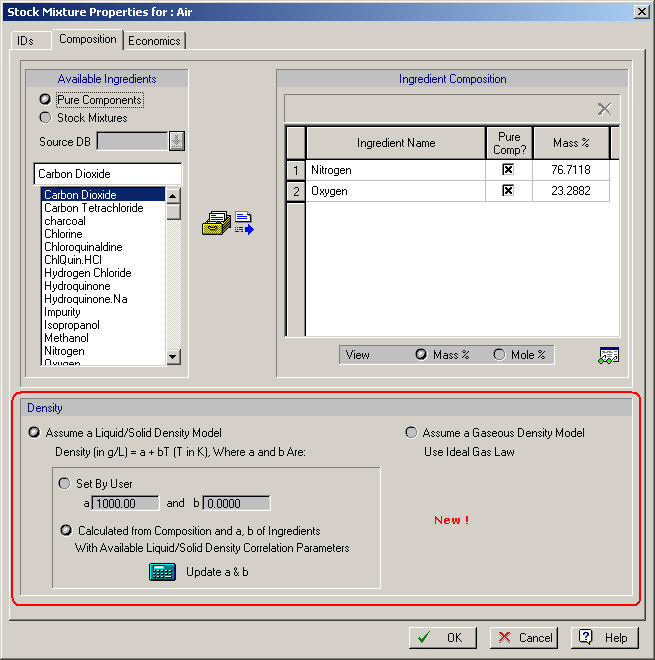
Of course, this assumes that all ingredients have user-provided a & b parameters.
a14. A New Stream Classification ("Cleaning Agent") Is Available as an Option for Input Streams.
Input streams could be classified as one of the following categories:
- Raw Material (default)
- None
- Revenue (for the rare cases where process revenues are based
on an input stream - water treatment plants)
Since it is very common to use material to wash vessels, chromatography columns, etc., it is often necessary to tally the use of a material as a "cleaning agent" alone. This is now accomplished by allowing users to tag input streams as "Cleaning Agents" :

Classifying streams appropriately this way (coupled with the more refined way of tracking a material - see below - ), allows users to track consumption of a material from a particular origin type and distinguish it from any other use (e.g. as a raw material participating in the process chemistry).
a15. Tracking of Material Resources: Refined Charts Tracking Use Based on Origin or Type of Consumption.
When requesting to view a resource consumption chart (for a single or multiple batches) ProDesigner now displays the following dialog:
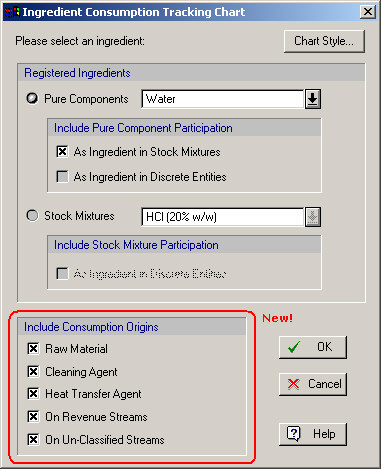
Notice that the user can have a choice as to deciding which type of consumption (or which origin of consumption) to include in the chart. The following categories of origin can be included:
(a) on "Raw Material" input streams
(b) on "Cleaning Agent" input streams as well as selections in designated operations like CIP, SIP, where it is implied that the use as a "Cleaning Agent".
(c) Heat Transfer Agents (assuming the selected HX Agent is associated to a material)
(d) On Revenue Streams
(e) On Un-Classified Streams
Note that one may use just one or a combination of the above consumption points to contribute to the total consumption line tracked in the chart shown.
a16. Cumulative Consumption of Material Resources Resets Every Set Window of Time or Every Set Amount.
When displaying the cumulative consumption of a material (or heat transfer agent), ProDesigner used to offer the choice to reset its cumulative value every set amount of time (e.g. a day). Starting with this version, there's a new option that is now supported: You can request to have the cumulative value be reset when the amount reaches a certain value. For example, when displaying the cumulative consumption of water in a process, we can select:

and then we get the following chart:

a17. Tool Tip Information Displayed for Icon Ports that Are of Special Purpose.
When the mouse moves over a port of a unit procedure's icon that has a special designation (e.g. vent port in a vessel, or Oil/Water/Solids output for a Bowl Centrifuge, etc.) ProDesigner will now display this information in the form of a tool tip (see below):

a18. A New Bitmap Now May Be Displayed at the Bottom Left of the Main UP Icon Indicating Staggered Employment of Equipment Resources.
Starting with v7, ProDesigner will display a new icon at the bottom left of the unit procedure's icon, when the associated host equipment resource has been assigned multiple sets of equipment to operate in a staggered mode.

Notice that as the mouse hovers over this bitmap (if visible) ProDesigner will now display the names of the associated staggered equipment resources. (R-701, R-702 in the figure above). Please note that the names of the staggered equipment resources are editable (visit the Equipment Data dialog, and in the "Staggered Mode" box click on the Names... button to supply your own names for the staggered equipment resource(s)).
a19. Simplified Interface for Setting the Icon and Stream's Style.
The interface for setting (or viewing) the style of a unit procedure icon has been greatly revamped. The first page allows the user to pick the color of the icon, as well as it allows the user to select which other labels/bitmaps should be allowed to be displayed around the main icon (name, description, staggered operation bitmap, etc.).
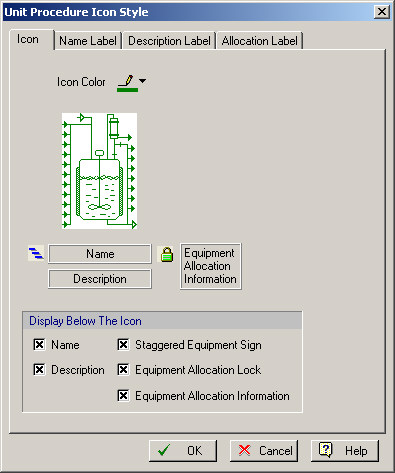
Furthermore, a compact, intuitive style set of controls have been employed for setting (and viewing) the attributes of the labels or other items surrounding the main icon.

Similar enhancements have been included in the dialogs allowing the editing of the style associated with a stream.
a20. More Advanced Features Available to Flowsheets With Multiple Recycle Loops.
The tear stream identification algorithm has been revised to allow for extremely complex recycle schemes with several loops and a large possible set of tear stream set options. Under such circumstances the previous algorithm used to fail to find a "non-redundant" set of tear streams. A set of tear streams is called "non-redundant" if it does not tear any of the existing process loops more than once. When such an identification fails (practically it may take a very long time to complete so the system would appear to freeze), the user can now help ProDesigner and instruct the algorithm to compromise by settling for a "redundant' set of tear streams. The consequence of such selection is that the convergence of such a flowsheet may be somewhat inferior; however, often times this does not lead to any significant delays in the overall convergence.

Another feature added to help the convergence of simulations with recycle loops is the inclusion of an option to reset to zero all streams that appear on loops before a simulation is restarted. Normally, this option is un-checked, as it stands to reason to expect that when iteratively converging a flowsheet, it is better use as a first "guess" the value of a recycle stream as it was previously calculated (from previous simulation) instead of 0.0 across the board of all flow variables. However, in some rare instances, such an assumption may lead to instability and prevent a loop from ever converging. Users are advised to use this option with caution and only when the default behavior does not lead to convergence. It is possible to de-stabilize the convergence of recycle loops by asking unnecessarily for all intermediate streams to be reset to zero.
a21. Optionally Enforce a Policy to Empty Procedure Contents Before Equipment Is Reused by Another Procedure.
In batch environments, commonly equipment is being shared amongst procedures. In order to make sure that no material is left in a procedure before a new one starts, we have implemented a new feature that provides the equivalent of a "local receptacle" to be available for such procedures to empty their contents before their equipment is reused. To activate this equipment feature, right-click over any procedure that utilizes the equipment, and select: Equipment Contents / Before Reuse / Dump To Local Receptacle.

If this option is activated, and a procedure terminates with non-zero contents, it will automatically remove its contents before the follow-up procedure is started. If this happened during simulation, the Equipment Contents / Before Reuse / View Receptacle Contents... option will be active. Selecting it, will show the material (amounts and composition) that was emptied.
a22. Expanded Back-Propagation Routes.
In versions prior to v7 ProDesigner would not allow back-propagation lines to pass through procedures sharing equipment. The reason was that if any of the shared procedures concluded with a non-zero amount that was to be inherited to the next procedure sharing the equipment, a forward disturbance would be created and that is not allowed when back-propagating an amount request.
Starting with v7, this connectivity is allowed provided during simulation it is recorded that the shared procedures leave the tank empty. To make sure that the procedure has no contents before it is being reused, it is recommended that you activate the "local receptacle" option of the equipment (see a21)
Note that this type of connectivity is relatively common when simulating buffer preparation tanks and their distribution network.
a23. Staggered Equipment Units Are Now Included in the Equipment Report
Previous versions of ProDesigner neglected to include any staggered equipment units in the equipment report (EQR). Starting with this version, any such units are included in the first column as well as in the "stand-by" column of the report's equipment summary table.
a24. User Can Select Which Procedures To Exclude from the Gantt Chart and Can Overwrite ProDesigner' s Order of Appearance in the Chart.
ProDesigner now allows you exclude any procedure that you wish from the Gantt Chart (if that is convenient). This can be accomplished by visiting the procedure's dialog (select Procedure Data... from the procedure's right-click menu) and checking the box next to "Omit from Chart":

Alternatively, one can accomplish the same for all unit procedures (in a list) by visiting the Gantt charts style dialog and clicking on the Order / Include / Exclude Procedures
button:

From the dialog that appears, not only can you include / exclude a unit procedure, but also you can set the relative order that you wish to see the procedures in the chart. By default, ProDesigner shows the unit procedures ordered by their start time (earliest first). However, you can apply a different criterion (alphabetically up/down, or any other order you wish).
a25. User Can Select Which Equipment Resource To Exclude from the Gantt Chart / Occupancy Chart and Can Overwrite ProDesigner' s Order of Appearance in the Charts.
ProDesigner now allows you exclude any equipment that you wish from the Equipment Gantt Chart or the Equipment Occupancy Chart (if that is convenient). This can be accomplished by visiting the equipment's dialog (select Equipment Data... from the procedure's right-click menu) and checking the box next to "Omit from Scheduling Charts" :

Alternatively, one can do accomplish the same for all unit procedures (in a list) by visiting the chart's style dialog and clicking on the "Order / Include / Exclude Procedures..." button

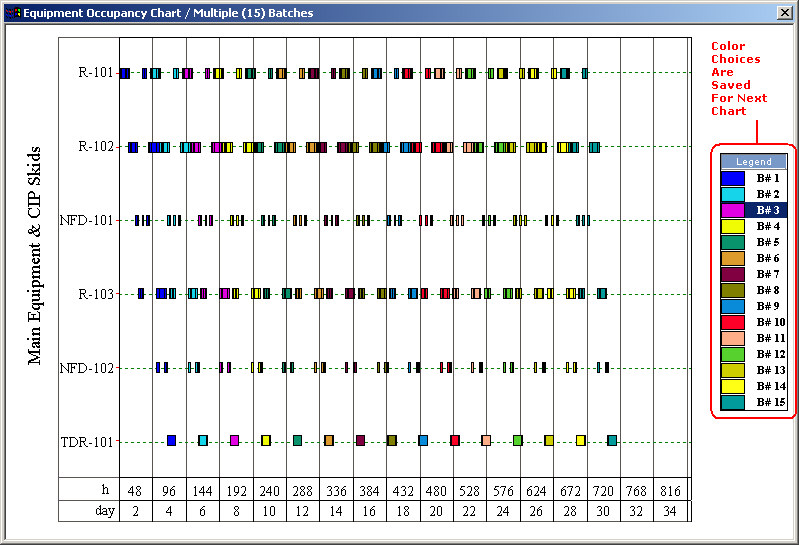
a26. The Color Map Used in Multi-Batch Equipment Occupancy Charts is Now Saved.
When displaying a multiple batch equipment occupancy chart the user has the option of selecting his/her own color scheme to be used for each of the batch times (boxes). ProDesigner, now saves the user's selection so that they will be applied on all consequent multi-batch chart displays:
a27. The CIP Skid / SIP Panel Presentation is Now in a Tree-Like View.
When selecting to view the CIP skids and/or SIP panels involved in a recipe the following tree-like display now appears:

This display makes it a lot easier to comprehend the utilization of each of the skids/panels. Also, notice that for each auxiliary piece of equipment ProDesigner now displays the following support information:
- Start Time of Use
- End Time of Use
- How Long the Skid/Panel is Being Busy
- The Percentage of Time (based on the cycle time of the process) that the Skid/Panel is Being Utilized.
a28. Viewing All Procedures or All Equipment Interface: List Can Now Be Ordered Alphabetically or By Start Time.
When selecting to view all equipment resources employed in a recipe (View / All Equipment) or to view all procedures defined in a recipe (View / All Procedures), the tree-like view of all items used to be always ordered by time of first use. For significantly large recipes this options was making it difficult to locate a specific entry. Now users can (optionally) order the entries alphabetically (in ascending or descending order) to facilitate locating of a specific entry:

a29. Trivial (Non-Equipment-Sizing) Procedures Sharing an Equipment Resource in Design Mode Is Now Allowed.
It used to be that ProDesigner did not allow users to share an equipment resource (e.g. a chromatography column) by more than one procedures unless all procedures contained operations capable of sizing the equipment resource. Under those rules, having a chromatography column be just washed (in a separate procedure) was not allowed (if the column was in design mode). This restriction has now been relaxed.
a30. Copy And Paste Of a Chart Now (Optionally) Includes Its Legend.
When attempting to copy a chart (e.g. Equipment Occupancy Chart) from SuperPro Designer now user has a choice of copying:
(a) Chart (with or without its legend based on the style's setting)
(b) Legend Only
a31. Custom View of Registered Components' Property Values in a Table.
We have now added a new table that can be viewed by selecting the View / Component Properties option:

This table presents for all components that are currently registered (used) in the design case, the value of user-selected properties. This is a new quick way for users to view a component's important property values as they may affect the outcome of the simulation. Users can chose which properties to display in this table, by right-clicking over the table and then selecting Edit Contents... Then the following dialog will appear:
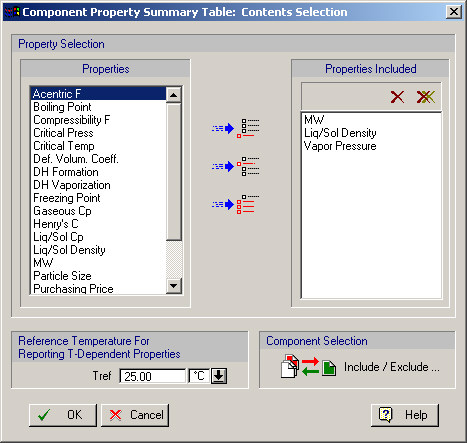
Note that from the above dialog, users can exclude some components (if they choose so, as they may not bear a heavy weight in the outcome of the simulation) and they may also pick which component properties to display in the table. For properties whose values depend on temperature (e.g. Liquid/Solid Density or Vapor Pressure), a temperature reference must be specified so that the selected property is displayed at that reference temperature.
Note that this table (just like the stream summary table or the equipment contents table) may also be linked to an Excel area for automatic update (see a36 below).
a32. Customize the Attributes (Rows) Viewed in the Equipment Contents Table.
In previous versions of ProDesigner users could customize the contents of the stream summary table (what properties for each stream are being displayed on the table) but couldn't do the same for the table that displayed the contents of equipment. A similar dialog now accomplishes that:

This dialog can be brought up by selecting "Edit Contents..." from the right-click menu displayed over the table.
a33. Customize the Attributes (Columns) Viewed in the Procedure Activity Overview Table.
A similar feature to the one described above for the equipment contents table has also been added that customizes the attributes shown in the procedure activity overview table that shows the in / out / contents effect of each operation in a unit procedure.

This dialog can be brought up by selecting "Edit Contents..." from the right-click menu displayed over the table. Note that the top two options are active for equipment that is being shared amongst multiple procedures. It indicates whether the table should show the contents of the equipment during its entire use in the batch (i.e., across multiple procedure usage) or during just the procedure selected.
a34. Procedure Activity Overview Table Now Shows All Streams Employed by Each Operation (if there are more than one).
It used to be that when an operation was employing more then one streams to bring in material or carry out material during a UP's operation sequence, the Procedure Activity Overview Table (shown when selecting the Procedure Activity Overview menu option from the UP's right-click menu), was only showing one of them. Now all streams are being shown:

Note in the above figure how the "Sanitization" operation is using two streams:
- "S-223" that brings in material (as indicated by the "+" sign shown next to the name)
- "S-140" that discharges material (as indicated by the "-" sign shown next to the name)
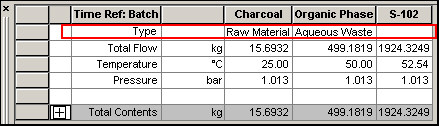
a35. Stream Summary Table Now Shows (Optionally) Each Stream's Classification Label.
We have added an extra property that is now optionally displayed in the stream summary table: Stream Classification (Raw Material, Solid / Liquid Waste, Emission, etc.)
a36. Refined Excel-Link Interface for Selected Tables.
SuperPro Designer allowed users to associate an Excel area of a spreadsheet to a given spreadsheet-like information presented by ProDesigner. For example, consider the information presented by the stream summary table (View / Stream Summary Table). When right-clicking over the table, and selecting the Excel Link / Edit option, a dialog appears that allows users to specify a spreadsheet area that will be considered "linked" to this table.

In previous versions of ProDesigner, the user had to specify a sheet name and a cell range (top-left and bottom-right cell). Starting with this version, users can simply pick a named range (if one is appropriately defined in the selected book). Also, notice that under the "Link Options" there are now options for giving permission to SuperPro Designer to automatically expand the range (if needed) to paste more information (if the source table happens to have more rows/columns than the selected named range). Also, there's another option that gives SuperPro Designer permission to erase (clean) the area in the range that happens to exceed the information table's dimensions when pasted in Excel. Finally, notice the "Auto-Update Values" option. When selected, SuperPro Designer will automatically update the designated Excel area every time the source data in the stream summary table change (e.g. after a M&E balance execution). Note that the above interface is available for:
- The Stream Summary Table
- The Equipment Contents Table (for each equipment resource)
- The Procedure Activity Overview Table (for each unit procedure), and
- The Component Properties Table
(showing all components registered in the process with user-selected properties).
a37. Relative File Paths Now Are Supported for References to External Files.
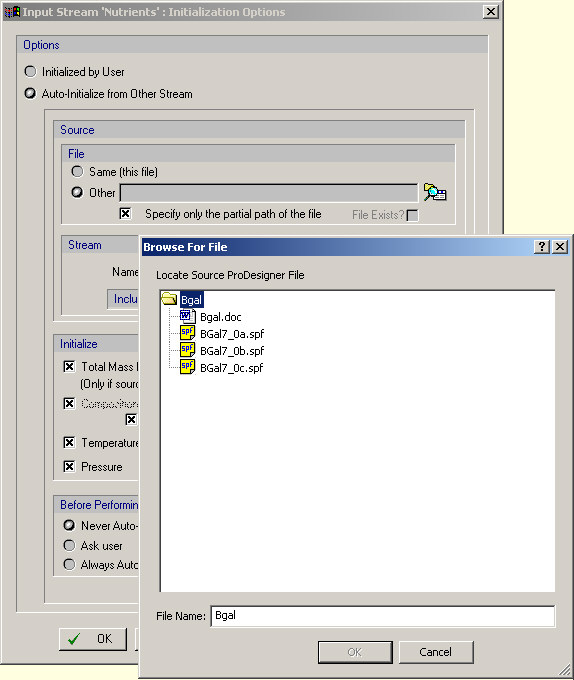
Sometimes users need to reference external files as part of a dialog specification in ProDesigner. For example, since v6, users are allowed to tie an input stream in a flowsheet to initialize itself by reading the flowrate and/or temperature and/or pressure and/or composition of another stream in another ProDesigner file. This is very convenient in cases where a fairly large process is divided into sections (or process steps) and each step is modeled separately in its own file. Since typically the final product of one step is a feed for the follow-up step, for such cases, users can take advantage of this auto-initialization feature to make sure that the proper composition and/or temperature and pressure are carried out from one simulation to the other. It used to be that when the external file / stream combination was selected, ProDesigner recorded the full path of the file (e.g. d:/SPD/CaseStudies/ProjectX/Step1.spf). If this reference is contained in "step2.spf" also kept in the same directory ("d:/SPD/CaseStudies/ProjectX"), then passing along both files to another member of your team will made the link unusable unless the receiver of the files happens to place the files in an identical folder ("d/SPD/CaseStudies/ProjectX"). By allowing ProDesigner to only save partial path of the file (that is the part of the pathname that is relative to the source file) moving both files to anyone would work, so long as both files were placed in the same folder (anywhere in the recipient's hard disk).
a38. Expanded COM Server's Programmer Interface.
Since v6, ProDesigner makes available a COM library that allows client programs to remotely control some of its operations. For example, users who know how to write small scripts in VBA for applications from Excel or Word, can have SuperPro Designer load a design case file, change flow values of a stream, re-run the simulation and fetch the value of a critical output parameter (e.g. the annual operating cost). As promised by the release of v6, this interface will be enriched from version to version based on feedback received by our customers. In this release, we have added the following functionality to the COM interface:
1) Set/fetch several report generation options (e.g. format, header and footer text, number of decimals for certain parameters included in the report, etc.).
2) Generate and save the reports in the default location or a location of user's choosing.
3) Generate most of the program's charts (gantt, equipment occupancy, utility consumption, etc.) and either copy them to the clipboard (so that they can be later pasted in a document of their choosing) or save them into a file (as a "wmf" metafile format) so that they can be later inserted in a document of their choosing.
4) Set/Fetch the Excel-linking information related to the tables mapped to Excel areas (Stream Summary Table, Equipment Contents Table, Procedure Activity Overview Table and Registered Component Properties Table).
5) Trigger updates for all the spreadsheets in the program that have a customized Excel linked area. For example, the contents of an equipment resource can be linked to an Excel spreadsheet area (or range). This customization can be done interactively from SuperPro (without any VBA programming). Later, using the COM interface of ProDesigner, and presumably after some COM calls have set new input values to certain parameters of the process, the flowsheet is re-solved and the equipment content information can be updated in the Excel flowsheet
As mentioned elsewhere, similar Excel-linked spreadsheets exist also for each unit procedure's activity overview table (see the right-click menu of a UP and select Procedure Activity Overview...), or the Registered Component Information Table (under the main menu View / Component Properties...).
6) Provided access to most data related to economics (capital cost & operating cost) specified at the section level (PC estimation options, factors, etc.) Also, we have included access to cost options for all equipment (choice of cost model, material factor, etc.)
7) We have included a pair of enumerator functions that allow users to retrieve from a ProDesigner document several lists: e.g., the list of unit procedures included in a flowsheet, the list of streams, the list of components, etc. Such lists may be associated (or contained) in the flowsheet directly, or contained in a unit procedure or a section alone. For example, users can now retrieve all the input streams of a given procedure. For a more detailed description of this new feature of ProDesigner's COM engine, please visit the "enumerators" topic in the COM component of the on-line help system.
a39. User DB Can Retain Components & Mixtures With Same Name as the System DB.
It used to be that ProDesigner would not allow you to define a pure compnent (or a stock mixture) in your User DB that shares the same "formal" name or "tradename" or "CAS Number" with one of the components that come with the System DB. Therefore, if users wished to create a 'clone' component of say of Ethyl Alcohol, that featured a different property value than the one in our System DB (that is not editable), they would have to invent a new name for it (e.g. Ethyl Alcohol-2). This is no longer a restriction. Users may opt to define a new Ethyl Alcohol component in their database and chose to register that component in a design case file rather than the version that comes with the System DB. Of course, the name for each component within the User DB still has to be unique.
a40. New Examples Added / Updated.
(a) A new monoclonal antibody example (under the "MAB" subdirectory of "Examples") focuses on monoclonal antibody production and demonstrates a typical, current state of the art process in the biopharmaceutical industry. It replaces a previous set of examples on mammalian cell culture.
(b) A new example file will be found under the "BioDiesl" directory of "Examples". The example is based on an "Ethanol from Corn" process model developed by scientists at a research center of USDA.
(c) & (d) Two more COM examples (under the "COM" directory of "Examples") have been added that demonstrate some of the new COM services (see above). Users who are interested in exploiting the new COM interface of ProDesigner should go over those examples carefully (COM5.spf and COM6.spf).
a41. Fine-Tune Consumable Consumption.
Sometimes a procedure that is carried in an equipment resource equipped with a consumable, may be carried out in a way that does not add a "wear-and-tear" on the consumables use. For instance, oftentimes it happens that a chromatography column may be washed few times (cycles) before it is loaded with a mixture that is to be separated. The washing cycles should not add to the lifetime of the resin in the column. Since, it is often convenient to have the wash and/or other preparatory steps appear in a separate procedure (with multiple cycles), in the past such cycles used to count against the lifetime of the resin, thereby unnecessarily forcing the program to include exceedingly high resin costs. Starting with this version, one may exclude the a given procedure from counting towards the lifetime of a consumable:

a42. Equipment Consumables With Volume Have Initial-Contents Consistent With Volume Equipment.
When employing an equipment resource that has a consumable with a volume property (e.g. disposable plastic bags, flasks, etc.) ProDesigner used to ignore initial contents of the disposables (i.e. they started as completely empty). Starting with this version, we initialize the contents of those disposable volume-based consumables with air (or anything else the user may wish to have) in a manner consistent with how SuperPro Designer treats other vessels (or volume-based equipment) in a process. Please note that users may also link the contents of such consumables to equivalent volume in the same or another design case file using the user-defined initialization option of SuperPro Designer, just as it would be possible to do for a regular storage vessel, or reactor etc.
a43. Charts Now "Remember" Their Last Size and Position.
When displaying a chart (e.g. the Operations Gantt Chart, or the Equipment Occupancy Chart, or any Resource Consumption Chart, etc.) now ProDesigner will position them and size them based on how they were positioned and sized the last time the user viewed them.
a44. Should Depreciation Be Included in the Net Profit?
ProDesigner used to add to the Net Profit calculated the depreciation. Some user's accounting practices don't follow this rule, but they would rather see in the Net Profit figure only "real" revenues and not the depreciation that is an artificial (or accounting) income. Now you don't have to make any compromises on this subject: There's a new option variable added in the set of options on how to do the profitability analysis for a design case file (see below).
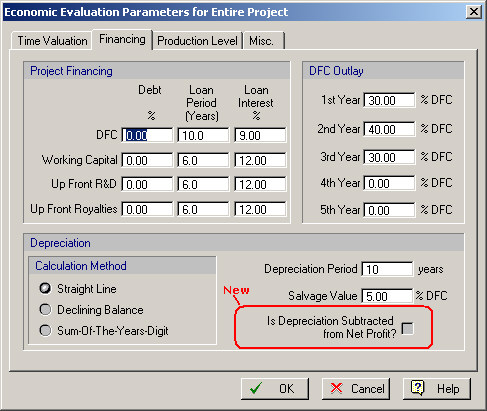
If you don't want SuperPro to include the depreciation in the Net Profit (default) just check the highlighted option above!
a45. No Rounding Applied to Components of Itemized Cost (Raw Materials, Labor, etc.); Capital Cost Estimates, Are Rounded
ProDesigner used to round entries contributing to the partial components of itemized cost (e.g. for each consumable, and the total consumable subtotal, for each labor type and the total labor subtotal, etc.). Due to rounding, some numerical inaccuracies were introduced in tallying up the final cost. Furthermore, the executive report presented by the interface of the program did not apply any rounding thereby creating mismatches between the displayed numbers and the numbers included in the reports. Starting with v7 no rounding is applied anywhere in the reports. Instead, a rounding to the nearest thousand is only applied to the estimates of capital cost.
b. New Unit Procedures
b1. Solids Leaching
b2. Composition Controller
b1. Solids Leaching
A new unit procedure was added under the group of "Extraction". It simulates the solids extraction process in a Mixer-Settler equipment. A new unit operation that simulates the actual extraction step has also been introduced in this version.
b2. Composition Controller
Similar to the existing flow controller, we have now included a different type of controller procedure: the Composition Controller. Included under the group of "Design Specs", this procedure simulates an information loop around the process, by linking a selected manipulated variable (the total flow of a user-selected stream) to a target value for a single component's concentration or the sum of concentrations for a user-selected group of components in a stream.
c. New Unit Operations
c1. Flush
c2. Leaching In a Mixer-Settler
c3. Composition/Concentration Controller
c1. Flush Operation
A new operation has been added to filtration procedures that allows the filter to be washed (flushed) after its use.
c2. Leaching in a Mixer-Settler
This operation is the main operation of a new unit procedure added under Unit Procedures / Extraction / Solids Leaching to simulate solids leaching in a mixer-settler.
c3. Composition Controller
It is the main operation in a new procedure added in the group of Design Spec controllers: Unit Procedures / Design Spec / Composition. It allows the user to select a target concentration value for a component or a selected group of components together in a stream, along with another stream whose flows will be adjusted by the program in order to meet the user's target (if possible).
d. Improvements in Operations
d1. Stoichiometric Reactions: Model Has Been Expanded to Include Parallel as Well as Sequential Reactions
When specifying a reaction scheme, users used to be restricted to providing the stoichiometric conversion information assuming a sequential pattern. This was not always convenient as conversion % of a follow up reaction was supposed to be applied on the material left after the leading reaction. Starting with this version, users can also specify reactions that are assumed to occur in parallel, and therefore the specified extension are all applied to the material amounts as existing at the beginning of the parallel set of reactions.

Note that it is allowable to mix parallel groups of reactions with sequential reaction steps.
d2. Stoichiometric Reaction Interface Re-Designed
The interface presented for all operations that require the specification of a stoichiometric reaction scheme (batch stoichiometric reaction/fermentation, continuous stoichiometric reaction/fermentation, etc.) has been re-designed (see below)

In this interface, the string description of the stoichiometry of a selected reaction is displayed in a longer box which decreases the likelihood that reactant or product description is split up in different lines.

Furthermore, a new variable "xtent Achieved" is displayed. This is the extent accomplished by the reaction according to the user's specifications and the available material. Please note that the extent of reaction (as set by user) sometimes may not match the value reported as "extent achieved" if the extent is not based on the limiting component and not enough of the limiting component is available to achieve the desired completion.
d3. Option of Component/Flow Splitting after Continuous Reactions and Continuous Storage Operations in Multi-Port Vessels.
Sometimes users need to simulate a selective removal from a reaction vessel of certain components (e.g. gaseous products). Even though with the new addition of optional venting removing all gaseous components through the vent is now an option, we still provide for any other separation that may follow a reaction operation (in a continuous mode) by allowing the user to request to have this option:

If the option is requested a new property page is included that allows the user to dictate the component distribution on the equipment's available ports. Note that this option is available to reactions in continuous vessels (like CSTR) as well as reactions in Generic Boxes (GBX). Finally, note that one may request the split to be based on total flows and not specific component flows.
d4. Gaseous Components May or May Not Be Allowed to Participate in a Liquid Phase Reaction.
Since ProDesigner is now more precise with the Vapor-Liquid state of a component, it allows users to either permit or prohibit the participation of the vapor part of a component in a reaction happening in the liquid phase.

Checking the box shown above implies that all the vapor portion of the component (if there's any) is assumed to be fully dissolved in the liquid phase and therefore any conversions or concentrations required to be computed for that component will be done using the entire amount (vapor and liquid) and the liquid phase volume. If the check box is un-checked, then only the liquid portion of the component will be considered instead.
d5. More Options Added to Custom-Mixing Operation.
More options added to the "intelligent" or Custom Mixing operation (Unit Procedures / Mixing / Bulk Flow / Custom) :

The Ratio option existed previously, but it was only interpreted as the ratio of the total mass (or volume) of the added stream over the process stream. Now, we have added more options that may enforce the ratio in more (creative) ways. Essentially, one may ask the numerator of the ratio to be either the mass/volume of the total stream or just one (user-selected) component in the added stream. In the same spirit, the denominator used to calculate the specified ratio, may be either the total mass (or volume) of the process stream or the mass (or volume) of a specific (user-selected) component in that stream.
d6. More Options Added to Continuous Evaporation Operation.
More options have been added to the continuous evaporation operation (see below):

Instead of setting evaporation data for each component, now users have the option of just setting the percent evaporation of a key component and then the relative evaporation rate between other (volatile) components and the key (design) component. Of course, the old option (of directly specifying the evaporation percentage of all volatile components is still available).
d7. More Ports Available to All Chromatography Procedures/Operations and Batch Filtration, Diafiltration Procedures.
More ports have been added to all chromatography procedures as well as all batch filtration and diafiltration procedures. Also, the waste (output) stream for the chromatography procedures is now user-selectable.
d8. Many More Operations Now Offer the Option to Become Slave Operations.
After request by several of our users, we have included the option of allowing an operation to have its duration be matched by the duration of another operation (master) in many existing operation types: Batch Heating/Cooling, Electrical Heating/Cooling, All Valve Operations, Batch Crystallization, All Pumping Operations, etc.
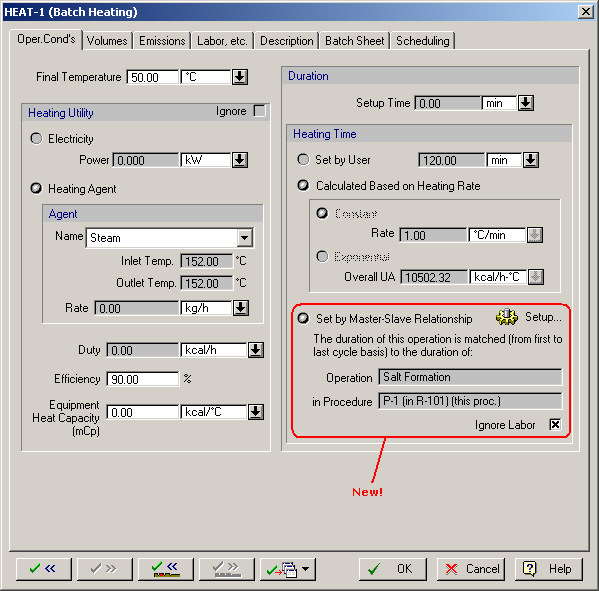
d9. Drying Time Is (Optionally) Calculated in Some Drying Operations.
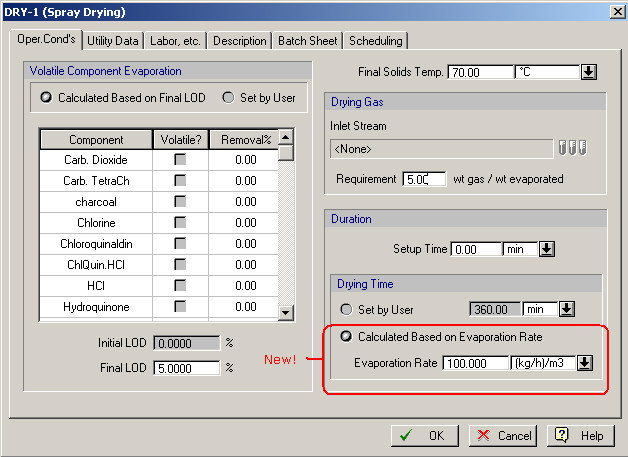
More drying operations (Spray Drying, Drum Drying, Rotary Drying and Fluid Bed Drying) now offer the option to have their drying time be calculated based on the evaporation rate and the drying requirements (when the equipment is in rating mode).
d10. Liquid Extraction Operations (in Mixer-Settler, in a Differential Extractor, etc.) Now Have Thermal Options in Their Operating Conditions Property Tab.
The liquid extraction operation will now allow users to either specify a temperature of operation or request a heat balance be performed adiabatically or under a specified heating/cooling rate:

d11. Elution Operation (in Chromatography Columns): Volume Specification May Be Given on a Relative Basis.
When specifying the Elution volume required, the user now has the option of specifying the amounts either on an absolute basis (e.g. 50L per column per cycle) or a relative basis (e.g. 5 Column Volumes per column per cycle). This option already existed for the Column Wash and Column Regeneration operations.

d12. Tray Drying Operation: Gas Requirement Specification Options Added.
When specifying the demand for drying gas, users now have an extra option: specify the amount of gas per amount of material evaporated.
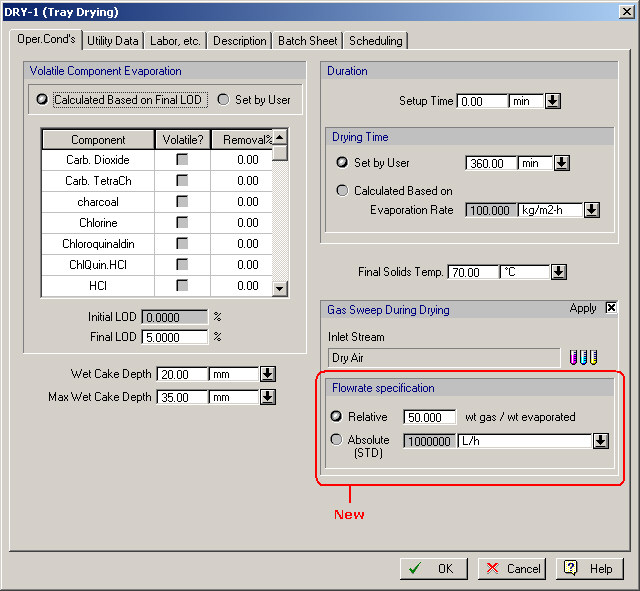
d13. GBX Operations: No Emissions Allowed.
Starting with this version (v7) all GBX operations are not allowed to have an Emissions/Venting tab, and therefore, users cannot expect emission calculations to be done. As noted elsewhere, starting with this version, emissions and venting are only allowed for operations that are being carried out in equipment that has a "vent port". GBX equipment don't (at least for now). This option may be added in a future version.
d14. More Operation Variables Are Now Accessible by the COM Interface.
This has become a "regular" new feature in every major release of the program. This time more variables have become accessible by the COM interface of ProDesigner for all membrane filtration operations (Microfiltration, Diafiltration, etc.) and Chromatorgraphy Operations (Elution, Regeneration, etc.).
d15. All Attributes of Equipment Content Table, Component Information Table, Stream Summary Table and Procedure Activity Table Are Now Accessible by the COM Interface of ProDesigner.
All options that dictate the contents of the tables that may be exported by ProDesigner to Excel (Stream Summary, Component Information, Procedure Activity Overview and Equipment Contents) can now be accessed and modified by COM calls, before the table is exported. For example, COM calls can dictate if the equipment contents table for a given equipment (e.g. "V-101") should show (or hide) the vapor section. For more details, please view the COM Interface help file.
d16. All Options That Describe an Excel Link Option for a Table Can Now Be Accessed and Set by the COM Interface of ProDesigner.
All options that dictate where and how any of the four tables now exported (and linked) to Excel spreadsheets can now be accessed and set by COM calls. For instance, there are calls that specify the Excel file and location (range) where the contents of V-101 should be mapped. Then, a simple call can export the contents to that location. For more details, please view the COM Interface help file.
d17. Column Wash Operations Can Now Define a Specific Output Port To Direct Their Waste.
It used to be that there was a pre-selected chromatography column port where the waste of all wash operations was directed. Now, each wash operation may select which output port it wishes to use to direct its waste.

d18. Reaction Descriptions Now Offer the Choice to Ignore Reaction Heat.
It used to be that when a reaction was introduced as part of a stoichiometric or kinetic reaction scheme, users needed to specify (among other things) the reaction's heat along with a reference component and a reference temperature. This information is now optional. For users who wish to ignore the reaction enthalpy or do not have sufficient information, they can click on the option "Ignore" (see below).

d19. Incineration Operation Now Allows for Either an Auto-Adjustable Air Stream, or a Fixed Flow Air Stream.
It used to that during an incineration simulation, the air flow was always automatically adjusted to match whatever demands were imposed by the fuel consumption. Since in many cases the flow of air is part of a recycle line (which is not allowed to be set as 'auto-adjustable') it was inconvenient. Starting with v7, the air flow may be set to be taken 'as-is' and if not enough oxygen is supplied, a warning will be put-up.

e. Bug Fixes
e1. Excess Oxygen Amount Calculation in Neutralization / Wet-Air Oxidation
Due to a bug, the excess amounts of required oxygen (based on the stoichiometrically required) was incorrectly computed.
e2. Information Tag / Volumetric & Mass Flow Units
The proper units were not shown in Information Tags when the volumetric and/or mass flow of a stream was displayed.
e3. Legend in Multi-Batch Equipment Occupancy Charts
The legend in multi-batch equipment occupancy charts, now properly displays all batch entries (even for a large number of batches).
e4. Sharing of Discrete Entity Handling Equipment
When an equipment resource that handles discrete entities does not accumulate any (therefore it cannot contain any entities to be passed from one procedure to another) it is allowed to be shared among more than one procedures (regardless of the entities that they handle - i.e., even if the entities may not be exactly the same).
e5. Batch Crystallization Bug
Under certain circumstances, the mass balances of a batch crystallization operation yielded incorrect results.
e6. Pull-In Operation Display of Final Contents
The pull-in operation was not displaying the final contents units correctly (the number was correct but the units were wrong).
e7. Dragging of a Single UP with an Intermediate Stream Yielded a Crash
When dragging a single icon of a unit procedure with at least one intermediate stream attached to it a crash was recorded. Actually, this operation is not allowed (and does not lead to a crash any more).
e8. Bug in Exporting Cyclical Operations to MS-Project
Due to a bug, cyclical (batch) operations (with number of cycles larger than one) sometimes were exported with incorrect cycle times.
e9. Incorrect Reporting of Cyclical References During Master-Slave Linking
When attempting to establish a master-slave relationship between two operations, under certain (rare) circumstances, an erroneous reporting of cyclical references would not allow the user to complete the linking.
e10. Exporting Stock Mixture Complained About Missing Ingredients
When attempting to export a stock mixture to the user database, sometimes ProDesigner would (incorrectly) complain that some of its ingredients could not be found in the database.
e11. CIP Operation Copy-and-Paste Lead to a Crash
After copying a multi-step CIP operation from one procedure to another (user the procedure's clipboard interface), SuperPro used to crash if the original (source) CIP operation was eventually deleted.
e12. Error in Computation of Aeration Rates
When computing the aeration rates for fermentation operations based on the user's setting for VVM, the model would interpret the specification in inlet conditions instead of "standard conditions" (25°C and 1 atm).
e13. Name Tag Bug in Streams.
If the name of a stream was displayed in an information tag, and was changed, the new name was not displayed.
e14. Transfer Out Operations Did Not Scale Properly During Scale Up/Down.
When scaling up/down a process that included transfer-out operations with a fixed amount that was set to be scaled with the process, the amount was not properly scaled up/down.
e15. Absolute Time Display in Charts
When a time chart (e.g. equipment occupancy chart) was requested to display for x-axis an actual (calendar) time, the start time was not properly displayed when adjusted by the user.
e16. Charge Amount Turned into 0.0
Under very rare circumstances, the charge amounts set on a charge operation (and/or stream) would be reset to 0.0.
e17. ICR Report Would Show Incorrect Price of HX Agents
When a non-SI unit was chosen to display the consumption of HX Agents, their cost was incorrectly reported in the ICR.
e18. Transfer In / Charge Operations Computed Zero Process Time
When somehow the charged stream (or transfer-in stream) turned out to have only gaseous components, the duration for a charge (or transfer in) operation used to compute a zero time (since it was based on the liquid/solid portion of the stream alone). This would lead into crashes when computing the scheduling results (batch time, cycle time, etc) and during the display of any time-related charts.
e19. Batch Vaporization Operation Reported Incorrect Concentration Factor.
When such an operation was being executed in a procedure hosted by a multiple (simultaneous) pieces of equipment, the concentration factor was incorrectly computed.
e20. Centrifugation Operation / Sigma Factor Complain.
Due to a bug, when running the centrifugation operation in a UP in rating mode, sometimes ProDesigner would incorrectly complain about the value of required sigma factor..
e21. Cash Flow Calculations Failed When Interest Was Set to 0.0
Cash flow calculations failed when the interest value (for the time-value of money) was set to 0.0.
e22. Consumable Replacement Frequencies Was Allowed To Be 0.
The consumable replacement frequency (for example, for filters, bags, etc.) was allowed to be set to 0.0 leading to a crash.
e23. Heat Transfer Agent Rates for Continuous Procedures in Batch Flowsheet Were Incorrectly Reported.
The consumption rates for resources (such as heat transfer agents, power, etc.) were incorrectly reported for operations of continuous procedures operating in a batch flowsheet. The total amount of resource used up per batch, was incorrectly divided by the recipe's batch time instead of the recipe's cycle time.
e24. The Holdup Time Did Not Adjust to Accommodate Staggered Equipment .
When a batch procedure operating in a continuous flowsheet calculated the amount of material that should be processed per cycle, it used to multiply the rates of incoming flows times the cycle time (of the batch procedure). However, in cases where extra equipment resources are available to be engaged in a staggered mode, the material processed per cycle should be divided by (1+Number-of-Extra-Equipment-Sets). Another way to view this, is to say, that the holdup time for such procedures can be a fraction of their cycle time.
e25. Load-And-Split Operation: Incorrect Simulation Outputs.
Due to a bug in the code for the load-and-split operation module, the split fraction specifications were applied onto the amounts after combining the loaded material into a vessel instead of applying the split before the loading occurs (ie on the amounts carried by the loading stream).