Start-up Task Choice Dialog
Up to this release, as soon as you started SuperPro Designer, it assumed that you were about to start a new design case, and presented you with the "Plant Operating Mode" dialog. Starting with this release, instead of automatically assuming that you would like to start a new design case, now you can customize the start up task. You will notice that the next time you start SuperPro Designer, you will be shown the following dialog:
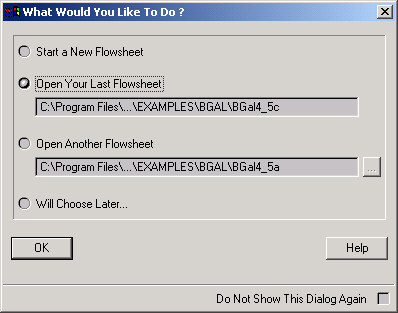
From the above dialog you may choose one of the following as your start-up task:
- Start a New Design Case (as before)
- Open the Last Design Case File You Worked On
- Open Any Other Existing Design Case File
- Do Nothing (i.e. Postpone What to Do First, for Later).
Note that you can customize the behavior of your copy of SPD, and instead of allowing the start-up task choice dialog to come up every time you start a SPD session, you can choose to automatically execute one of the above four actions. For instance, you may chose to have SPD automatically open the last flowsheet you worked on during your last session. That would be a good choice in case you are working for an extended period of time with the same file. To do that, when faced with the start-up task choice dialog, after you select the "Open .Your Last Flowsheet" choice, make sure you check at the bottom right of the dialog, the "Do not Show This Dialog Again" option. Next time SPD starts, it will automatically load the last flowsheet you worked with during the previous session. You can always change the settings to any one of the other three options, or force the start up task choice dialog to come up at the beginning of a new SPD session. Go to File / Application Settings
and in the first tab, find the "Start-up" Section and check the "Show Tasks Dialog" option.
Stream Summary Toolbar
Oftentimes, you would like to focus your attention on certain streams and more specifically on certain properties of those streams. Perhaps the flowrate of a certain component in a stream may be very critical, or the mole fraction of a component in a stream may be of greatest importance amongst your simulation outputs. Now, with this new feature of SPD you can customize a stream summary table to include just the streams you need to focus on, and display just the properties you wish only. You can show/hide the stream summary table in three different ways:
- from the View menu, select View / Stream Summary Table
- from the flowsheet s command menu, select Preferences / Stream Summary Table / Edit Contents
- from the command menu of any toolbar (right-click over any toolbar), select Stream Summary Table
All of the above commands work as toggles: i.e., selecting them once will show the table, selecting the same command again, will hide the table.
To edit the contents of the stream summary table, you can do it in two different ways:
- from the stream summary tables command menu, select Edit Contents
- from the flowsheet s command menu, select Preferences / Stream Summary Table / Edit Contents
The following dialog will appear:
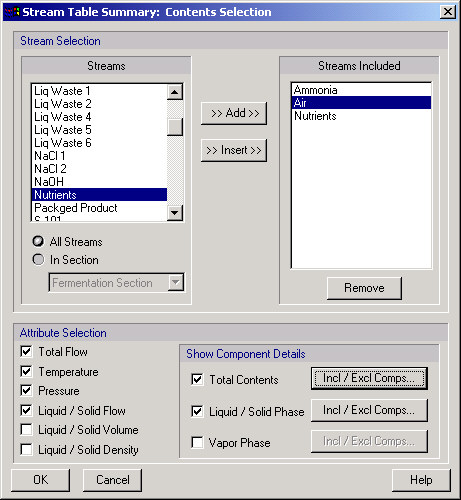
To change the order of streams (displayed as columns in the table) just drag the stream's name up and down the list box. As you can see, you can have a great flexibility as to what is displayed in the stream summary table. For streams that distinguish between liquid/solid and vapor phase, you can even select which components to include in each phase. You can elect to have the stream summary toolbar be included or excluded from your printed version of your flowsheet. Note that in order for the table to be printed, the table must not be docked.
Copy / Paste Stream Data
Sometimes it useful to be able to quickly initialize an input stream, by using the current composition (and flows) of another existing stream. Now, there's a new option in the command menu of any stream (input, output or intermediate) : Copy Contents
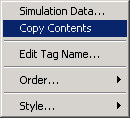
Once you have copied the contents of a stream (e.g. stream S-107), then you can paste the data into any input stream; just bring up the command menu of the desired input stream, and select Paste Contents of S-107.
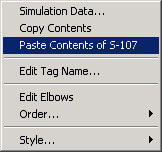
Note that until you paste the contents of the selected stream, the source stream must not be deleted. Also, the source and destination streams must both reside in the same flowsheet.
Set Preferred Tear Stream
In flowsheet that involve recycle loops, SPD needs to make iterative calculations in order to solve the M&E balances. All the loop structures are identified, and then, SPD has a state-of-the-art tear stream identification algorithm for selecting the most appropriate tear streams to be used for the iterative calculations. However, there are times, where the user may wish to explicitly set a specific stream to be in the tear stream set. For such cases, we have included one more entry in the command menu of streams participating in loops:
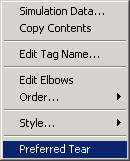
If you select the Preferred Tear option, then, SPD will make sure that next time you perform M&E balances, that stream will be used as a tear stream
A Search Engine Has Been Added: Find, and Find Next
How many times has it happen that you received a flowsheet from your college, with some directions like:
John, please look at the contents of stream S-130. Don't you think the concentration of component 'ABC' is too high? Shouldn't we adjust the rejection coefficient of ABC in the filtration operation inside unit procedure P-202 ?
Then, you open the flowsheet, and since it contains over 100 steps (unit procedures) and several hundred streams, it is virtually impossible to locate the stream and/or unit procedure mentioned in the memo. Starting with this version of SPD, we have incorporated a very flexible search interface, quite similar to the way you perform text searches during word processing. You can select Edit / Find (or Ctrl+F as a shortcut), to bring up the Find Dialog
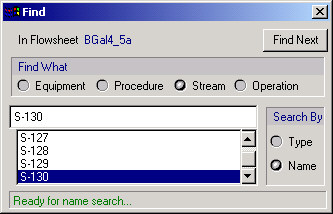
The dialog makes it very simple to search for any equipment, unit procedure, stream, even an operation, by either name or type. For instance, to find the stream mentioned in the memo above:
- In the "Find What" section, select "Stream"
- In the "Search By" section, select "Name".
- Then start typing the name: "S-130"
Notice that as soon as you have made your first two selections, SPD has loaded all the acceptable choices in the list box. As you type, it narrows down (by scrolling automatically) the choices to only those matching the typed portion of the search string. While a possible match exists, the message "Ready for name search..." is displayed at the bottom. If the selected choice is what you are looking for (even if you haven't typed the entire name), just click on "Find Next" and SPD will locate and highlight that stream (or any other object) for you (by scrolling if necessary). Do you need to find out where in your (very large) recipe you utilize a specific type of equipment, e.g. a Nutsche Filter?
- In the "Find What" section, select "Equipment"
- In the "Search By" section, select "Type"
- Start typing "Nutsche Filter"
Then as soon as the "Nutsche Filter selection is highlighted, just click on "Find Next", or double-click on the highlighted "Nutsche Filter" entry in the list box. If there such an equipment is used in the active recipe, SPD will focus on the first use of the equipment. If you click on the "Find Next" button of the Find Dialog once more (or alternatively, simply select Edit / Find Next - or Shift+Ctrl+F as a shortcut - in the program's main menu) the next use of a Nutsche Filter will be located (if any).
New Resource Charts Added for Inventory Studies
All the resource tracking charts that SPD offered up to this version focused on the consumption side. They allowed you to track the consumption of any resource (raw material, utilities, labor) in the span of one or several consecutive batches. Starting with this release, now you can also evaluate the impact of such resource use on the supply side and perform inventory studies. You can invoke the inventory charts from the View / Resource Inventory Charts submenu of the main program's menu.
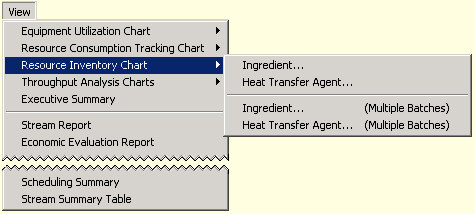
The first time that you request to see the Inventory Chart of a specific Ingredient, you will be presented with the following screen that forces you to describe essential information describing the supply side of that ingredient.
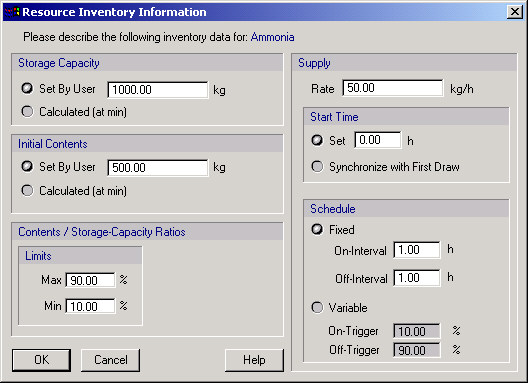
Note that similar screens will appear if you decided to view an inventory chart of a utility.
The above dialog asks the user to describe the total capacity (or allow it to be computed), initial contents (or allow them to be computed), min/max allowable storage-to-capacity ratios, rate at which the supply of the resource refills the storage vessel as well as a pattern by which the refill occurs. You may specify a fixed interval of 'on / off' supply pattern or you may specify an intelligent, based-on-contents supply pattern. Also, you must designate when the first supply arrives to the storage tank (it can be either at the beginning of the batch, or as soon as the first draw or consumption is recorded). Once you specify the above information regarding the supply side of the resource, SPD will produce a chart with any one (or several at the same time) chart lines:
- supply rate
- demand rate
- rate-of-change (combined rate)
- cumulative supply amount
- cumulative demand amount
- storage contents
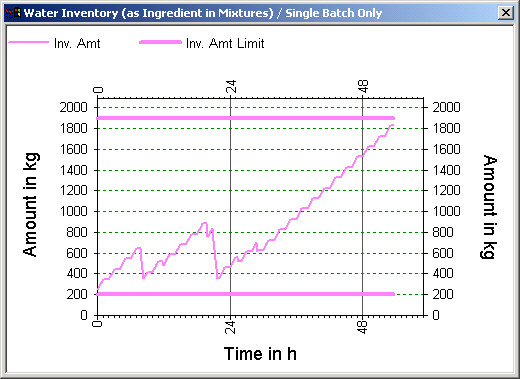
SuperPro Designer will also warn the user if the min/max storage-to-capacity limits are violated, or if the storage tank runs dry or overflows. This may happen, for instance, if the user has specified the total capacity and initial contents and, based on the supply / demand patterns, at some point in time there is not enough material to satisfy the demand or there's too much material that cannot be stored. Notice that having selected a supply pattern, the "Resource Supply Information" dialog allows you to involve any one of the following strategies:
- Set the capacity and the initial contents of the storage tank and simply test the recipe's demand to see if any violations occur (tank may run empty, overflow or violate the min/max contents-to-storage ratios)
- Set the capacity, but let the program compute the necessary initial contents (up to capacity level of course) so that no violations occur (still, the tank may run dry, overflow or violate the min/max contents-to-storage ratios)
- Let the program pick the storage capacity and the initial contents so that no violations occur.
Equipment Used in Staggered Mode Now Show Directly on the Equipment Utilization Chart
Using multiple equipment operating in staggered mode to minimize effective batch time is a very common debottlenecking practice. SuperPro Designer could incorporate such equipment operation in its estimation of effective batch time (EBT) and consequently in its estimate of annual production. However, until this release, only the main (primary) set of staggered equipment showed in the Equipment Utilization Chart. Starting with this release, you will notice that for equipment that operate in staggered sets, multiple lines will appear under the name of the primary equipment set.
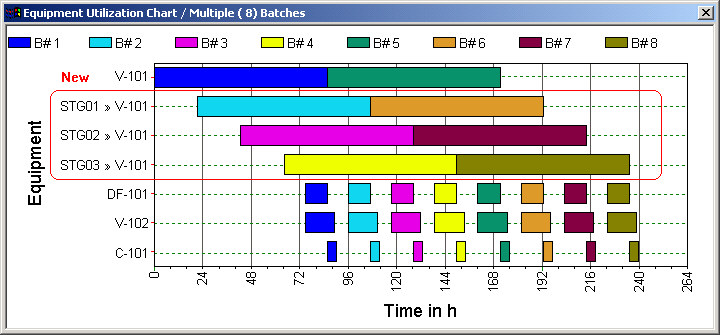
Even though the name of the primary equipment set (V-101 above) can be edited (as usual) by the user, the names of the associated staggered equipment set as shown in the equipment utilization chart are created automatically by the program as a combination of "STG## » " and the name of the primary equipment.
New "Solve Toolbar" Gives You Total Control over the Solve M&E Computation Sequence
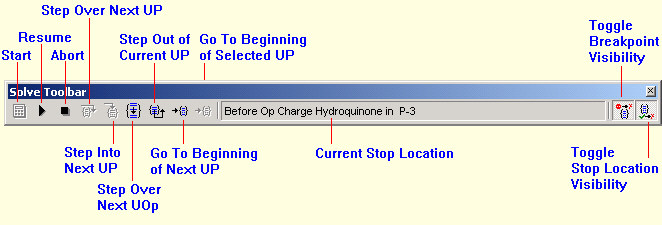
Up to now, after you plugged in your input stream descriptions and the operation / procedure / equipment specifications, you would issue the "Solve M&E Balances" command (or .Ctrl+3 as a shortcut, or click on the calculator icon) and wait for the result. Oftentimes, an erroneous specification at some operation may yield a zero (or unfortunate) output composition to that process step, which when fed to the next process step, would create several other error messages, and the 'snowball effect' kicks in from there on. Up to now, you could only guess where to start (by looking at the first error message that appeared), but you still could not be sure what were the conditions leading to the error message etc. The new "Solve Toolbar" takes full advantage of our sequential modular approach to simulation. Now you can place a breakpoint, and force the M&E balance execution sequence to pause either right before, or right after the solution of the suspect unit procedure. You may even place a breakpoint inside the unit procedure's solution sequence of unit operations. Here's how you place a breakpoint on a unit procedure:
- Bring up the command menu of the unit procedure:
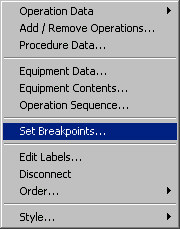
- After selecting the "Set Breakpoint" option, the following dialog will appear (actual list of operations, of course, depends on the unit procedure)
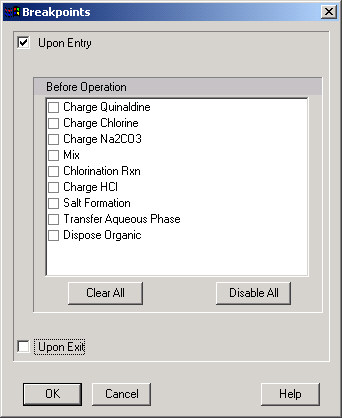
Once you check the place(s) where you wish the simulation to pause (in the case above, right before the solution sequence in this procedure starts), and exit this dialog, notice a red sign is shown above the procedures icon to indicate that one (or more breakpoints) are set on this procedure. If the breakpoint is set upon entry (as in our example above) the red sign shows at the flow entry end of the icon (left, unless the icon is flipped).
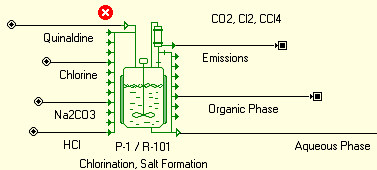
If a breakpoint is set upon exiting the solution of the procedure, then the icon would have appeared on the flow-exit end of the procedures icon (right, if the icon is not flipped).
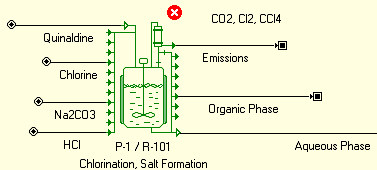
Finally, if one or more breakpoints are placed inside the operation sequence of the unit procedure then the red icon will show above and in the middle of the procedure's icon.
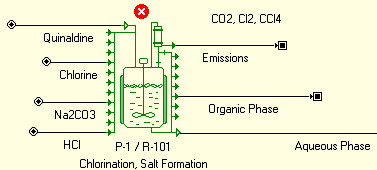
Once a breakpoint is set, next time the "Solve M&E Balances" command is issued, the simulation calculation sequence will pause at that location. When the simulation sequence is paused, some of the "Solve Toolbar's" buttons become active:
Also notice that while the simulation has been paused, all unit procedure display another icon underneath that has indicates the simulation state of each procedure at that time (as the simulation is paused):
 -> UP has not been visited yet
 -> UP has been successfully simulated already
 -> UP is being solved recursively (as part of loop convergence)
 -> UP solution ended unsuccessfully (as part of an un-converged loop)
 -> UP solution ended unsuccessfully (an error was encountered)
The following sequences of images, indicate the state of the unit procedure that is CURRENTLY BEING SOLVED (i.e. when the breakpoint was encountered):
If the unit procedure does not perform automatic material pull-in and push-out, then one of the following icons is shown:
 or
or  or
or 
The first icon indicates that the simulation has paused right before entering the UP,
the second icon indicates that the simulation has paused somewhere during the operation sequence simulation,
and the last icon indicates that the simulation has paused right before exiting the UP's simulation
If the unit procedure performs automatic material pull-in and push-out, then one of the following signs is shown (notice the extra stop locations: one for right-after the automatic pull-in initialization and one for right before the automatic push-out cleanup action)
 or
or  or
or  or
or  or
or  or
or
Note that you can toggle the visibility of the breakpoint icons (above the UP) as well as the simulation status icon (below the UP) from the Solve Toolbar (last two buttons).
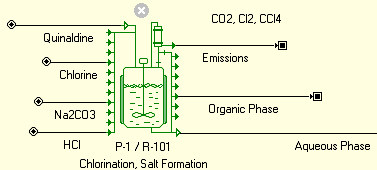
Also note, that you can temporarily deactivate breakpoints (without removing them). Simply visit the Set Breakpoints interface dialog of a unit procedure, and click once more on the checked breakpoint location. Notice how the checkmark now is still there, but looks faded (grayed out). The breakpoint sign above the UP's icon will look faded as well:
When the "Solve M&E Balances" sequence is paused, you may visit any stream or procedure or operation's i/o simulation dialog to inspect or even modify values of operating conditions. Note, however, that if you modify the values of streams and/or operations belonging to unit procedures that have already been solved (i.e., the check mark icon appears underneath) or to the unit procedure that is being currently solved but the operations whose value has been modified has already been solved, then the new values will not be taken into account until the next "Solve M&E Balances" command is issued.
Saving All Open Flowsheets Is Now One Click Away
If you had several open flowsheets, and needed to save them all, previously you had to send a "File Save" command (File / Save or Ctrl+S as shortcut) to each one of them separately. With the new command added, "File Save All" (File / Save All, with a main toolbar button as a shortcut), saving all your open, modified flowsheets is just one click away.
Closing All Open Flowsheets Is Now One Click Away
If you had several open flowsheets, or several views of the same flowsheet, and needed to close them all, previously you had to send a "File Close" command (File / Close or click on the top-left button of the file's view) to each one of the views separately. With the new command added, View / Close All, you can close all open views (for one or several flowsheet) with a single command. Note, that if any of the design case files need to be saved (i.e. they were modified since the last time that they were saved on the disk) this command will automatically save them for you (without prompting). Of course, if any of the open views displays a file that was never saved before, then you will be prompted to specify a name for the (new and unsaved) design case file.
More Shortcut Buttons Added to Main Toolbar
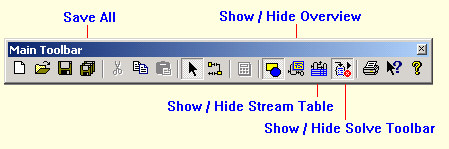
A few more buttons have been added to the programs main toolbar. From user feedback that we have collected, the actions we have added appear to be the most requested. New buttons allow to :
- Save all open design case files (Shortcut to File / Save All)
- Show / Hide the Overview Navigator Window (Shortcut to View / Overview Navigator)
- Show / Hide the Stream Summary Toolbar (Shortcut to View / Stream Summary Table)
- Show / Hide the Solve Toolbar (Shortcut to View / Solve Control Toolbar)
A Scheduling Summary Popup Window
As you are making changes in your process, you often need to monitor the most vital characteristics related to the scheduling aspects of your recipe (like batch time, effective batch time, longest procedure, bottleneck equipment, etc.). That's exactly what the purpose of this new window we have added. These pieces of information are vital, of course, only to flowsheets that operate in batch mode.
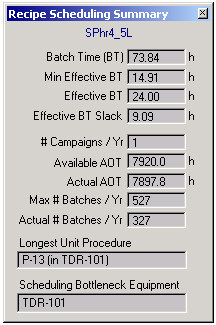
Note that you can show or hide the Scheduling Summary popup window from View / Scheduling Summary. Also, note that you can bring up the scheduling summary popup window, while you work with any of our charting facilities (resource tracking, equipment utilization, throughput & debottlenecking, etc.)
Select Your Choice of Units for Mass, Volume, etc. Once
As you probably know, each stream dialog allows you to chose your preferred units for viewing the value of flows, concentration, etc. Similarly, the Equipment Contents and Operation Sequence tables that can be viewed for each unit procedure, display component quantities, temperature, pressure, etc. with user-selectable choices for units. Now, you can change your choice of units once, and have the new choice be reflected everywhere. From the command menu of the flowsheet, select Preferences / Physical Units Options. Then the following dialog appears:
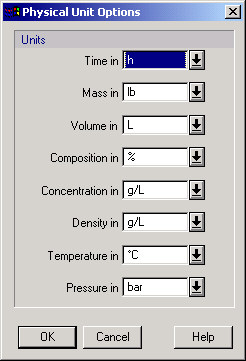
Once you exit this dialog by clicking on the OK button, all future streams and unit procedures will, by default, use the new set of choices for mass, temperature, etc. If you would like to apply these new unit settings to pre-existing streams, unit procedures and the stream summary table, then in the ensuing dialog:
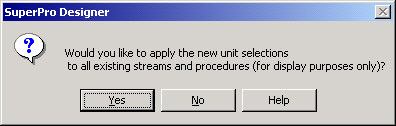
make sure you answer 'Yes'.
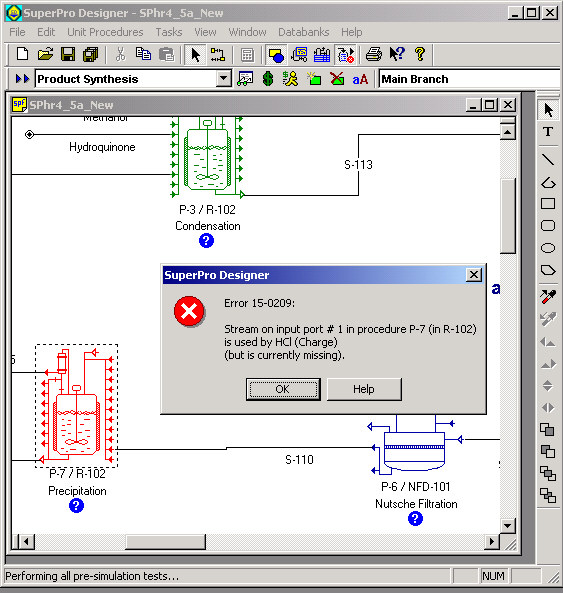
Automatic Scrolling to the Procedure / Stream / Equipment or Operation that Relates to an Error Message
Once in a while, and in response to a user's action, SuperPro Designer will bring up an error (or warning) message. Typically this will happen in response to a "Solve M&E Balance" command. For example:
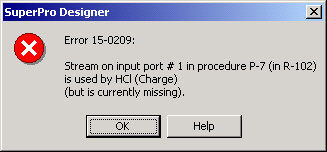
Starting with this release, SuperPro Designer will automatically scroll and locate the object related to the error message displayed (in this case, P-7), by scrolling if necessary, in order to bring to view the above procedure (the procedure will also be highlighted). For example, while the above message is displayed SPD will have presented the following in the flowsheet' s view:
ESC Aborts a Lengthy "Solve M&E Balances"
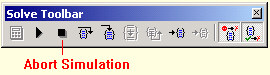
If you issue a "Solve M&E Balances" command, and the computations take an extraordinary long time to finish, or if you simply changed your mind, you can hit Esc (while the simulation is still in progress) to abort the simulation. Notice, that you can accomplish the same action, by clicking on the "Abort" button of the "Solve Toolbar"
More Control over the Streams Included in the Stream Report
Up to now, all streams in a flowsheet were included in the stream report (SR). However, for large flowsheets, with over 100 streams included, reading the stream report became very difficult. Furthermore, the order by which streams were included in the stream report, up to now, was random. Starting with this release, SuperPro Designer gives you a lot more control over the streams included in the "Stream Section" of the stream report. First of all, now you can designate which streams you wish to leave out of the SR. Bring up the command menu of the flowsheet, and then select:
Preferences / Stream Report Options This will bring up the following dialog:
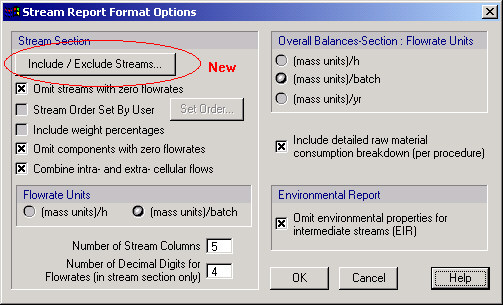
Clicking on the "Include / Exclude Streams" button, will bring up another interface that allows you to simply un-check a stream, and thereby excluding it from the report.
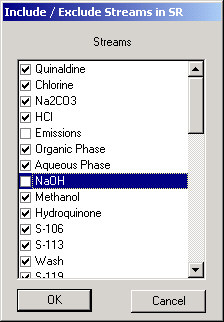
Also, now by default SuperPro Designer will include streams in the SR in an order that reflects the chronological sequence that they are utilized in a batch recipe, or, the order that they appear in the solution sequence (in a continuous flowsheet). We have found out, by polling our users, that this order would be satisfactory 99/100 times. For those special cases, were you wish to have the final word on the order, we have included a new option in the "Stream Report Format Options" dialog (same dialog shown above). To set the order of streams manually, bring up the dialog as usual (by selecting Preferences / Stream Report Options from the command menu of the flowsheet. This will bring up the following dialog:
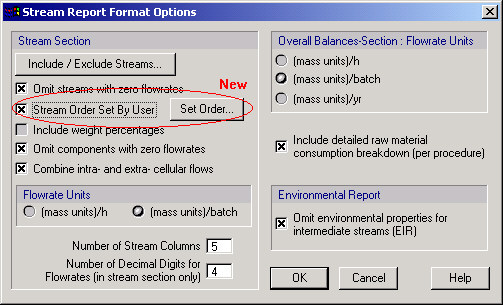
If you click on the "Set Order" button, then the following dialog appears:
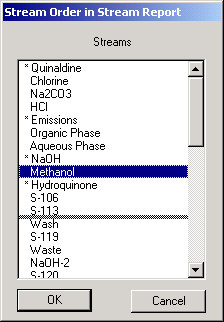
To move a stream up or down the list, just select the stream (like stream "Methanol" above) and drag it (up or down).Notice that an asterisk will appear in front of the name of those streams that have been excluded from the report.
New Component Definition Must Use an Existing Component for Default Property Values
When introducing a new pure component (either in the user's database or in a design case), the "New Component Definition" dialog used to offer you two choices: either use a reference component as a source for default values of the physical property data of the soon-to-be-defined component, or set all physical property values to zero. The second option, often times led to problems as users neglected to visit the constant or temperature-dependent physical property pages for the new component and therefore, several such properties were left to zero (un-defined). Starting with this version, you are always forced to specify a component that will be used as a supplier of the default physical property values. We recommend that for new components, which in standard conditions are in liquid phase to use "Water" as the source component; and for those that are in standard conditions are in gaseous phase, use "Nitrogen" as the source component.
The same adjustments have been made to the "New Stock Mixture Definition" dialog.
Expedite the Definition of New, User-Defined Components (and Stock Mixtures)
Frequently, users needed to introduce their own components (or stock mixtures) in a design case and were faced with the following interface:
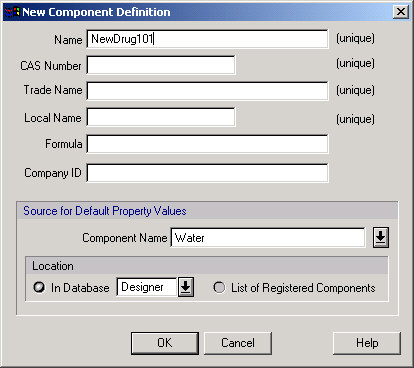
Before you proceed with the definition of other component properties, the user must specify the 6 strings as shown in the dialog above (Name, CAS Number, Trade Name, Local Name, Formula, Company ID). In many cases, at least in the early stages of a process development, one does not really want to be very precise about filling these fields, and more often than not, all fields ended up having the same string. So, up to now, users had to fill up the first field, then copy and paste its contents to the other fields. Starting with this release SuperPro Designer significantly accelerates filling up the above screen by automatically echoing the string you type in the first field (Name) to all other fields (up to their corresponding size limits).
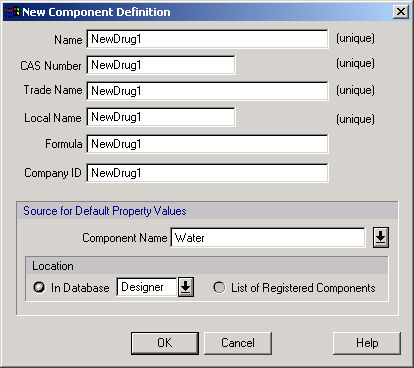
This automatic field editing continues to happen for a field as long as it displays the same string (up to each field's size limit). As soon as you decide to overwrite the field's string and input a string that differs from the string contained in "Name", the automatic string editing is disabled, and from then on, each field must be edited separately. Note that the simultaneous string editing will kick-in if you revert back to a string that matches the Name field. Also, the simultaneous string editing only happens when editing the "Name" field.
Export Flowsheet (or Parts) to AutoCAD (or 'DXF' vector format).
SuperPro Designer now allows you to export either the entire flowsheet, or just a set of selected unit procedure icons with streams, into a file that is compatible with AutoCAD. The picture file is in "DXF" vector format and can be opened directly by AutoCAD (or AutoCAD Lite) or other graphic programs that allow you to import this vector format (DXF), such as Corel Draw. To use this option, first select the set of icons that you would like to include in your exported picture (if you wish to include the entire flowsheet, the first select Edit / Select All (or Ctrl+A as a shortcut) to select the entire drawing). Now, with the desired set of icons selected, select File / Export to AutoCAD and type a filename in the ensuing dialog.
Customizable Prefixes for Unit Operations, Unit Procedures, Equipment Types, Streams, etc.
SuperPro Designer automatically generates a name for each new unit operation, unit procedure, equipment, stream, etc. that you include in your flowsheet. The name for that new object, is always made up by combining a standard prefix (that depends on the type of unit operation or equipment etc.) and a number. All such prefixes used to be strings built-into the software. Furthermore, the starting number for procedures was always 1 and for equipment and streams was always 101. Starting with this version, all these settings are user-modifiable. You can may modify the prefix and starting number you would like SuperPro Designer to use when creating the name of a unit operation or equipment or procedure etc. The dialog show below is the interface displayed after you select File / Application Settings, then select the Prefixes tab:
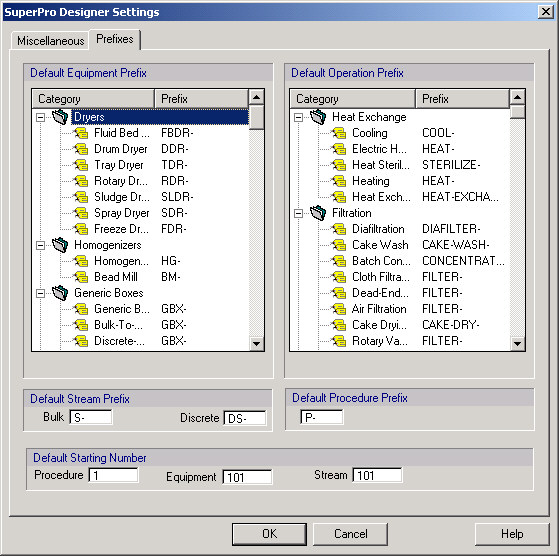
From that dialog, you can set new strings to be used as your prefix of choice for a given unit operation type, or equipment type, or stream etc. Also, you may specify a default starting number for each object type (procedure, equipment or stream). Note that the starting numbers may also be set for each section, as well. In other words, if you have divided your flowsheet into three sections, you may opt to have all unit procedures that belong in the first section to have numbers in the '101-199' range, then all procedures in the second section to have numbers in the '201-299' range and finally procedures in the third sections have numbers in the '301-399' range Please visit the Section <name> / Properties dialog, and switch to the last tab (Miscellaneous)
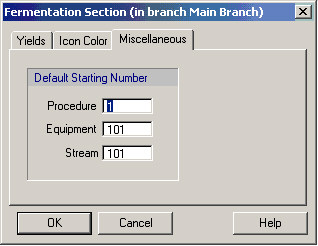
From there, you may set the starting number that SPD will use for procedures, equipment etc from then on, when creating automatically the name of future unit procedures, equipment or streams added to this section of the flowsheet.
User-Selectable Temporary Directory.
SuperPro Designer needs a path location to use as a temporary directory for creating and deleting temporary files during the course of its normal operation. For example, if you have the auto-save feature turned on, this is the location used by SPD to store backup copies of all open, un-saved flowsheets. By default, SPD will create a "TEMP" subdirectory under the installation directory for that purpose. Since the installation directory could be assigned to a reside on a "Read-Only" server directory, so users of SPD may not have 'write-privileges' on that directory, you may want to specify an alternate location to be used as a "TEMP" directory. Please note that SPD will not start, until an appropriate temporary directory has been assigned (regardless of the auto-save status, on or off). You may change the location of the temporary directory from File / Application Settings dialog. Note that if several users have their own installation of SuperPro Designer (even if they are all logged on to the same server), each user's setting for the temporary directory (as well as all other application settings) affect the copy of that user alone.
No More Waiting for Large Flowsheets to Print.
Printing has now been re-implemented using multiple thread technology, so that, even for very large flowsheets, as soon as you issue a printing command, it executes in the background, so that it returns command promptly to you so that you can resume your modeling work instantly.
Raw Material Consumption Can Now Be Reported on a Per-Section or Per-Procedure Basis
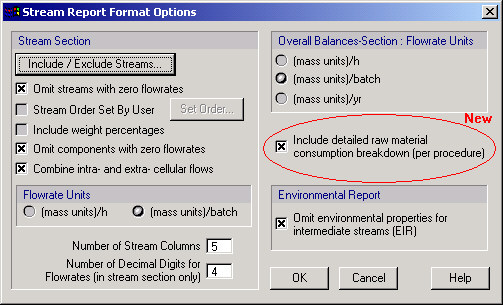
By default, SuperPro Designer reports the consumption of raw materials in a per-section basis. In case you are not utilizing the section breakdown feature, or simply, you would rather see the consumption of raw materials in the more detailed, per-procedure basis, you can now do it. This can be done from the Preferences / Stream Report Options dialog :
Several New Options Have Been Added in the Preference / Miscellaneous Dialog
-
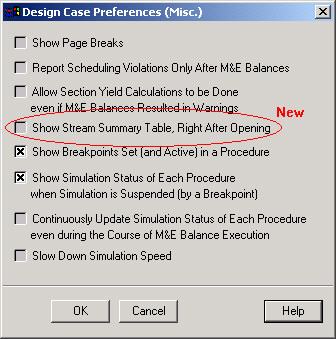
Show Stream Summary Table Upon Opening a Design Case File
If you prefer to always see the stream summary table, as soon as you open a design case file, then simply check the box shown in the dialog below:
-
Show / Hide Simulation Breakpoints Icons
As explained elsewhere, you can now interrupt the course of simulation and force the simulation engine to pause at designated stop locations (breakpoints). SuperPro Designer indicates these locations by displaying the following icon:

over the unit procedures icon (for those procedures that the user has set breakpoints). If you don't like to see those icons (but don't wish to remove the breakpoints), then un-check the pertinent box in the dialog below:
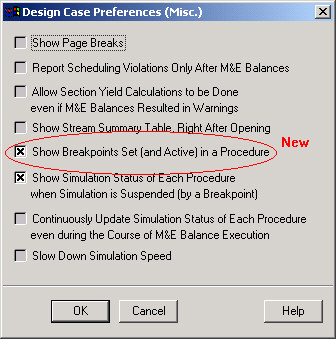
procedure basis, you can now do it. This can be done from the Preferences / Stream Report Options dialog. -
Show / Hide Simulation Status Icons
As explained elsewhere, you can now interrupt the course of simulation and force the simulation engine to pause at designated stop locations (breakpoints). When the simulation engine pauses, it displays under the icon of each unit procedure an image that indicates the status of that procedure in regards with the solution order: e.g. if a unit procedure has already been solved successfully, then the following icon is being displayed:
if a unit procedure, has not been visited yet by the simulation engine, then the following icons shows:
If the a unit procedure happens to be the one that the simulation engine currently being solved, the one of the following icons shows (depending on where, in the solution sequence of the UP the current breakpoint is):
or or
For a full description of all such icons, please see another topic (on the "Solve Toolbar"). If you don't wish to see these solution status icons, then you can turn them off by un-checking the pertinent option in the dialog below:
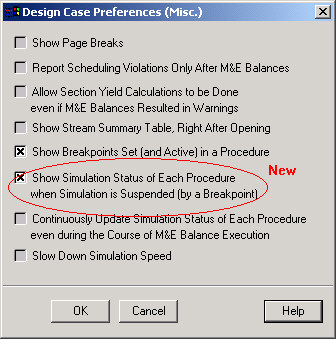 :
: -
Observe the Progress of the Solution Engine (Dynamically, as it Happens)
As explained above, SuperPro Designer can display under a unit procedure a status icon that indicates if the procedure has been solved successfully, or not visited yet by the simulation engine, or is being solved currently by the simulation engine. Normally, SPD displays those icons, only when the simulation engine runs into a breakpoint, and is forced to pause. However if you wish to see these simulation status icons all the time, as the simulation progresses, you can check the pertinent check box in the Preferences / Miscellaneous dialog.
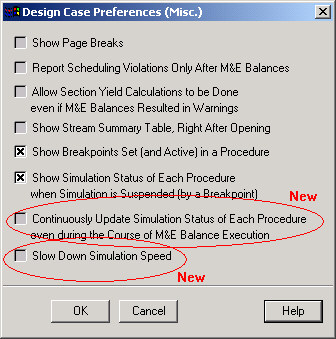
Then, you can observe the progress of the simulation, as it moves from one unit procedure to another. If the simulation executes very fast, so fast that it makes it very difficult to see how it evolves, then you can check the last box in the dialog above. This will effectively force the engine to pause about 5sec between unit procedures, so that you have change to keep up with the solution order.
Less Scrolling Necessary When Viewing the Gantt Operations Interface
The Gantt Chart interface is composed of two parts, as you know by now: the left side has a spreadsheet-like presentation of the data related to the scheduling of operations and procedures in your recipe and the right side has a visual presentation of that data in the form of a Gantt chart. By default, now the left side is resized appropriately to present all the columns included (so no scrolling is necessary). Also, the Gantt chart, now by default, shows next to the bars, the names and durations of each operation (or procedure, or cycle) the bar represents.
Registering Pure Components with Unavailable Property Values
Our system database contains about 400 chemicals with all the physico-chemical, environmental and economic data. Once in a while, you may run into a component for which a value (for a certain property) is not in the database. When such a component is registered in a design case file, now SuperPro Designer issues a warning:
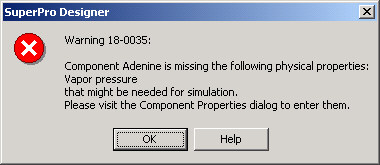
SuperPro Designer will still allow you to register the component. However, if you don't edit the missing property you must make sure you don't involve that component in an operation that requires it (see next item).
Involving Components with Unavailable Property Values in Unit Operations
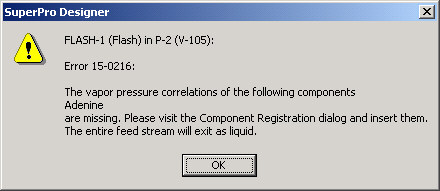
If you attempt to use a component in a unit operation that requires a valid property value for all participating components, then you will be issued a warning:
Exact Reporting of SPD Version and Build No
The SPD hail message (as well as the message that comes up in response to clicking on the "?" button,) now reports not only the major version but also the build number of your working copy of SPD.
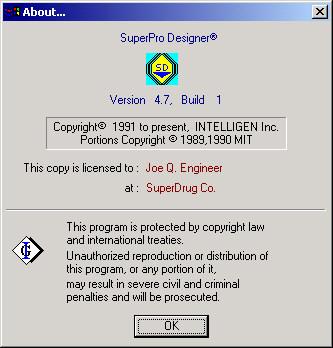
This will help our technical support staff better address any questions or issues related to the operation of the software.